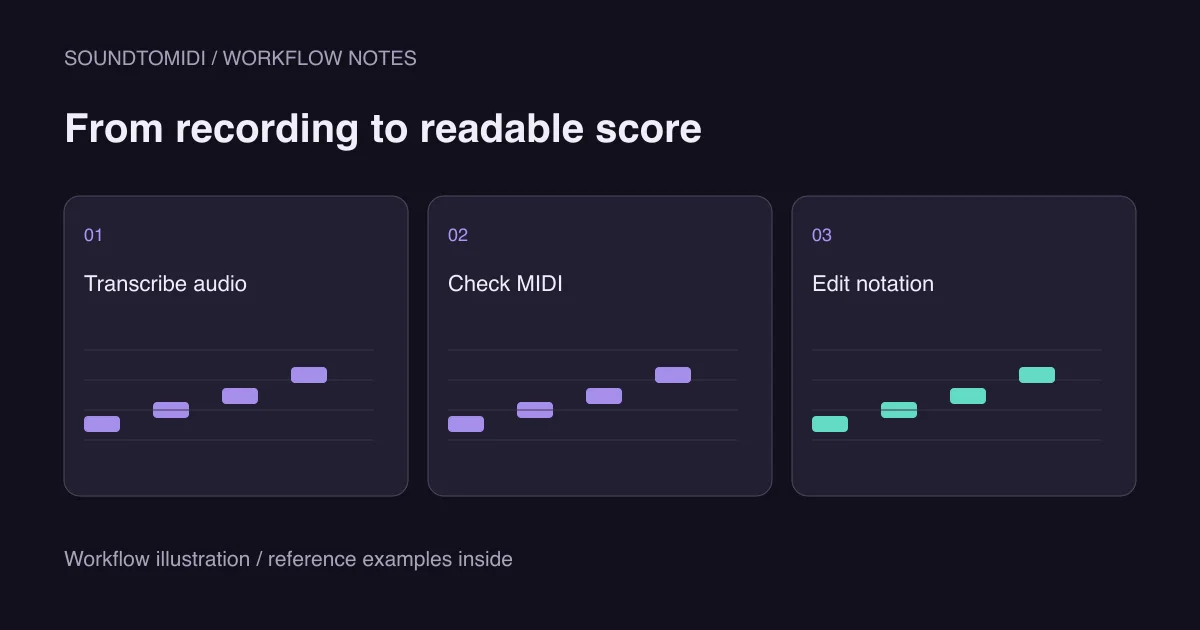
To use audio to MIDI with MuseScore, transcribe the recording first, then open the resulting MIDI in MuseScore Studio and edit the notation. Opening an MP3 as though it were a score is not the MIDI-import workflow. An audio recording contains sound; the score editor needs musical events or notation data.
The current MuseScore Studio handbook lists MIDI and MusicXML among the formats it can open. This guide concerns the desktop notation application, not an assumption about the MuseScore mobile app or an online subscription. The import instructions are documentation-based; the downloadable reference below is independently constructed and checked.
Separate three jobs before you begin
The first job is recognizing pitches and timing in a recording. The second is turning those events into notation. The third is editing a score that another musician can read. A usable MIDI file can still make an untidy first score because performed timing and written rhythm are not identical.
Start with a short melody and keep the original audio for listening. If the source contains several instruments, decide which part you want to write down. A full arrangement needs decisions about voices, rests and instrumentation that cannot be inferred reliably from a filename or a single conversion button.
You do not need to decide the final page layout before you have the notes. Check a phrase first. This prevents an hour of engraving work on a passage whose transcription is an octave wrong or missing half the tune.
Produce a MIDI file you can inspect
Select a clear passage in the audio-to-MIDI converter, convert it, then compare the original and MIDI previews. Download the free Raw MIDI when the result is useful enough to edit. Local transcription and Raw MIDI download do not require paying for an export pack or uploading your recording to a server.
Keep a separate copy before removing notes. Listen for false high notes, repeated fragments and long notes that should be separate attacks. A quieter note is not automatically a mistake. If you cannot hear a passage clearly enough to judge the output, a shorter or cleaner source may be more useful than aggressive automatic cleanup.
You can also use MIDI from a keyboard performance or another transcription application. The next steps depend on the events in that file, not on which converter created it.
Open the notes in MuseScore Studio
Use File > Open to open the MIDI file, inspect the imported score and save a working copy in MuseScore’s native format. Keep the original MIDI separately. The handbook explains how opening supported interchange formats differs from saving a native score.
Older tutorials may tell you to adjust a panel at the bottom of the window. The MuseScore 4 MIDI import page explicitly warns that its described import panel was not implemented at the time of that page. Do not keep searching for an old panel just because a screenshot shows it. Use documentation for your installed version, and make rhythm corrections in a MIDI editor before import if the controls you need are unavailable.
Diagnose a messy score with a clean reference
Our four-note MIDI reference contains MIDI pitches 60, 62, 64 and 67 as four consecutive quarter notes at 120 BPM, in 4/4. There are no overlapping notes or pitch bends. Opening it lets you test a simple input before blaming the transcription of a complex performance.
| What you observe | What to check next |
|---|---|
| Reference looks simple; your melody has many tiny rests | Note start times and gaps in your MIDI |
| Melody contains extra high notes | Compare pitches with the original audio |
| Both files play unexpectedly fast | Tempo information and project/import settings |
| Sound is right but a label looks an octave different | Numeric MIDI pitch and naming convention |
| Notes overlap into several voices | Intended simultaneity versus accidental overlapping lengths |
The reference is a test fixture, not a claim that all converted audio should become four tidy notes. Real performances can contain swing, tuplets, rubato and deliberate overlaps. Preserve those where they are part of the music.
Edit rhythm before polishing the page
Find the intended beat and the shortest rhythmic value actually used in the phrase. If the melody contains eighth notes, quantizing everything to quarter notes will destroy information. If it consists only of quarter notes, retaining tiny performance offsets may create unnecessarily complicated notation.
Work on a copy and adjust a short passage. Then compare playback against the source before applying the same treatment elsewhere. Check ties, rests and voice allocation as musical decisions, not just visual clutter. A neat score with the wrong rhythm is still wrong.
Once pitches and rhythm are settled, add or correct the meter, key signature, clefs, articulation and phrasing needed by the player. MIDI cannot be relied on to carry every engraving decision you would make by hand. MusicXML is another useful interchange option when the source application already has meaningful notation, rather than merely a performance.
For persistent pitch or speed problems, use the dedicated octave and tempo checks. Save the editable score before creating a PDF or audio render, so that later corrections do not require starting from the recording again.