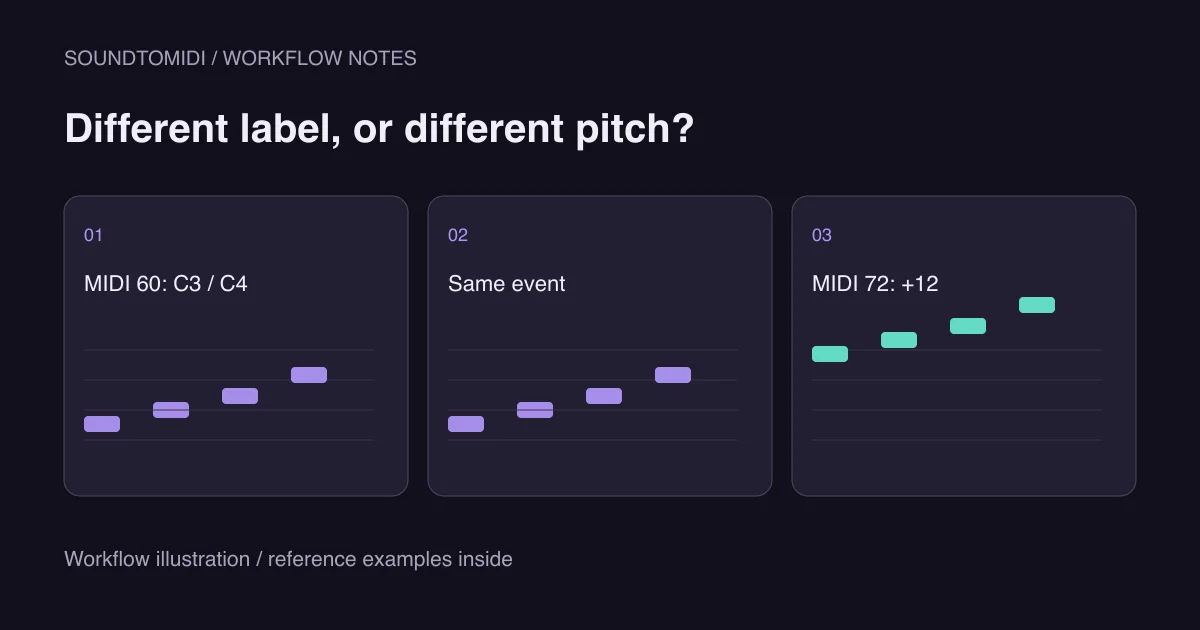
If your MIDI seems to be in the wrong octave, check the numeric note value before transposing. Two applications can display different octave names for the same MIDI event. If one calls note 60 C3 and another calls it C4, the label changed; the event did not move up an octave.
Morningstar Engineering’s note-numbering explanation documents this distinction. A real octave move changes a note by 12 semitones: 60 becomes 72 when moved up, or 48 when moved down. The sound can also change because an instrument transposes its input, even when the MIDI file itself is unchanged.
First decide whether you hear a problem
If the imported melody sounds right but the piano-roll label surprises you, leave the notes alone while you check the naming convention. Moving a correct melody just to make two labels match creates a new error.
If the sound is wrong, compare one sustained note through a simple, familiar instrument. Avoid a layered synth patch for this first check. A preset can combine oscillators in several octaves, making it difficult to tell which pitch corresponds to the MIDI event. Disable track transposition and pitch effects temporarily in a copy of the session, and note what you changed.
For a recorded performance, compare against the original audio, not just your memory of the tune. A voice or bright instrument may have a strong harmonic above its fundamental. That can make an octave error harder to identify by casual listening.
Try the note-60 reference
Download reference note 60 and reference note 72. Each file contains one note of the same duration and velocity. Import them into the same instrument track with the same settings, one at a time.
These are constructed MIDI examples. Their numeric pitches were checked directly; they are not outputs from an audio transcription test. With a normally tuned instrument that follows MIDI pitch, the second should sound one octave higher than the first.
For a separate listening reference, these generated sine tones use equal temperament with A4 at 440 Hz. They do not imitate a piano or a customer’s recording:
Note 60: approximately 261.63 Hz
Note 72: approximately 523.25 Hz
If both MIDI examples sound too low compared with these tones, inspect the instrument or track. If their pitch sounds right while the displayed octave differs, you have evidence of a labeling difference. This test will not resolve a silent track; use the MIDI no-sound checks first if necessary.
Follow the pitch through the chain
| Checkpoint | Question | Safe next action |
|---|---|---|
| MIDI event | Is the number 60, 72 or something else? | Inspect the event list or numeric pitch display |
| Track | Is a transpose effect active? | Bypass it on a copy and compare |
| Instrument | Does the preset shift or layer octaves? | Test a simple single instrument |
| Keyboard input | Is its octave button changing new notes? | Compare recorded events before and after resetting it |
| Audio transcription | Did only some notes jump by 12? | Compare those notes with the source phrase |
Do not assume a keyboard’s octave button will repair an already imported file. It commonly changes the events sent when you play new notes; the recorded events need their own inspection. Similarly, a patch’s octave control can change playback without rewriting the file you later export.
Correct only the notes that are actually wrong
Save the untouched MIDI and make corrections in a duplicate. If the whole part is consistently one octave too high in the note data, moving that part down 12 semitones may be appropriate. If only two notes are wrong, select those two. A global transpose would damage every correct note around them.
After moving notes, listen at the original tempo and inspect their lengths. When fixing transcription artifacts, a spurious note might need deletion rather than transposition. An overtone that was detected alongside the intended note is not automatically a second melodic event.
When sending the file to someone else, describe a reference using its numeric pitch as well as its name. “The first note is MIDI 60” is less ambiguous than “the first note is C3.” If needed, include a short audio render so that instrument choices and intended register can be heard.
Reconvert only when it addresses the source problem
If the underlying recording has an isolated melody but the transcription contains many octave jumps, try a shorter, clearer passage in the audio-to-MIDI converter, then compare the Raw MIDI with the original. Local conversion and Raw MIDI download are free. That does not guarantee an error-free transcription, and it will not fix a transposing instrument in your DAW.
For notation, check the score’s instrument and octave conventions too. The MuseScore handoff guide covers moving checked note data into an editable score. Resolve the actual pitch first; changing labels or clefs should not be used to disguise wrong notes.