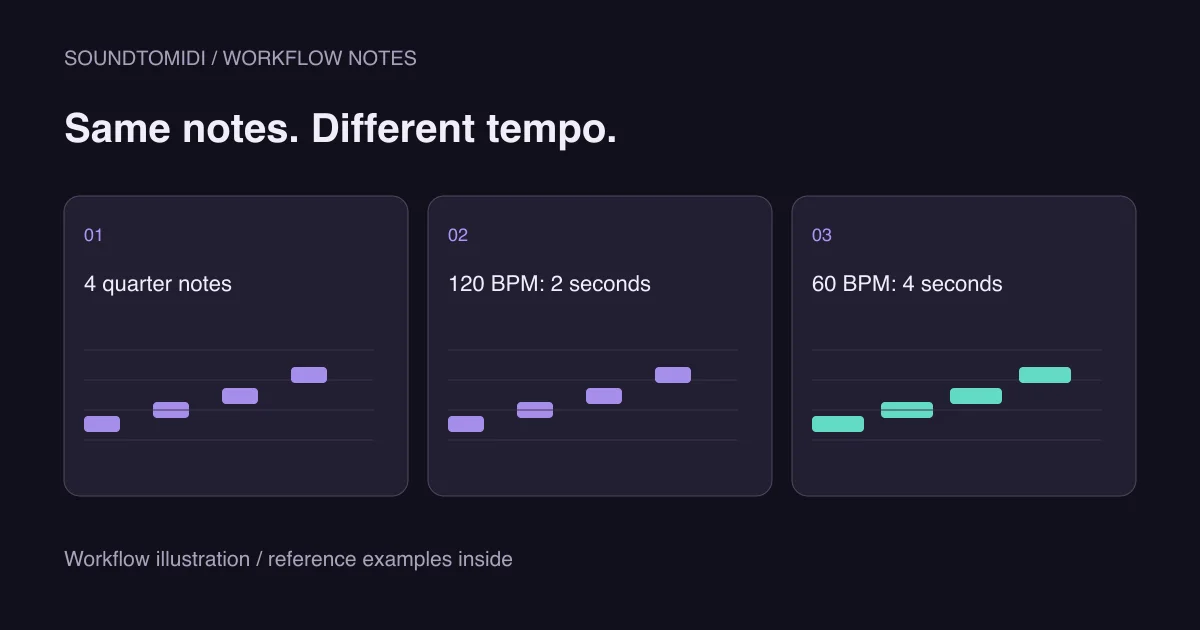
When a MIDI file plays too fast after import, first compare the file’s tempo with the receiving project’s tempo. Then inspect the note spacing. Changing BPM and stretching the notes are different repairs; doing both can overcorrect the same problem.
For ordinary beat-based MIDI files, time is represented in ticks and interpreted using tempo information. The Mido MIDI-file documentation explains ticks, tempo and conversion to elapsed seconds. A player and a DAW project can therefore produce different timing from the same note events if their tempo handling differs.
Use two files with known timing
Download our four notes at 120 BPM and the same four notes at 60 BPM. Both contain pitches 60, 62, 64 and 67, with the same quarter-note spacing and durations. Only the tempo differs.
At the embedded tempos, the first file spans 2 seconds from first note-on to final note-off, and the second spans 4 seconds. Instrument release tails can continue after the final event. These are constructed reference files, independently parsed for their note positions and tempo; they are not measured transcription results.
Four-note reference at 120 BPM
The same note pattern at 60 BPM
The audio examples are simple generated tones. Use them to compare spacing, not instrument quality. Import each MIDI into a separate empty project or deliberately inspect how your DAW handles its tempo. If both play at the same speed inside an existing project, that project may be supplying the tempo instead of preserving each file’s tempo.
Check which tempo the application uses
Look at the project’s tempo display and any tempo lane or list. Check whether the import offered to adopt tempo data, keep the existing project tempo or create a new project. Menu wording varies by application and version; do not assume that dragging a clip into a busy session is equivalent to opening the MIDI as a new song.
For example, Apple’s Standard MIDI file guide distinguishes import and opening workflows and describes loading tempo changes when a MIDI file is opened as a project. That is a reason to test in an empty project, not a recommendation to replace the tempo map of an arrangement you need to preserve.
| Symptom | Likely area to inspect |
|---|---|
| Correct in a file player, fast in your DAW | Project tempo and import behavior |
| Exactly twice as fast everywhere | Tempo value or note spacing at half the intended length |
| Starts correctly, changes speed later | Tempo events or project automation |
| Drifts against the recording | Tempo map, expressive timing or conversion timing |
| Only the attack feels late | Instrument attack, track delay or playback latency |
These are diagnostic leads, not proof of a cause. Save a copy before changing a project’s global tempo: other MIDI tracks, synchronized effects and time-stretched audio may respond too.
Decide whether BPM or note spacing is wrong
At 120 quarter-note beats per minute, a quarter note lasts half a second. Four consecutive quarter notes therefore last two seconds. At 60 BPM, those same beat positions span four seconds. This arithmetic lets you distinguish a tempo change from a change in the notes themselves.
If the imported part occupies the expected number of beats but those beats run too quickly, investigate tempo first. If the project is already at the intended tempo and the phrase occupies half as many beats as it should, inspect whether the events need time scaling. Work on a copy and listen before committing.
Do not confuse a time signature with a speed control. Changing how beats are grouped into bars is not the same as changing the tempo or doubling note lengths. Likewise, lowering MIDI velocity normally changes the instrument’s response, not the spacing between notes.
Handle performances that do not use one steady tempo
A solo performance may speed up and slow down deliberately. A single BPM adjustment can align the opening while leaving later phrases out of sync. Compare several points against the original recording before concluding that the entire file needs one fixed scaling factor.
Keep timing corrections local where possible. Check the first attack, a middle phrase and the final note. If the transcription has missing or duplicate notes, repair those as separate musical errors; stretching the whole passage cannot add a missing event.
The octave troubleshooting guide handles pitch differences. A tempo change should not be used to fix a melody sounding too high through a transposing preset.
When a new conversion helps
A new conversion is useful when the notes or their onset times were detected badly, not when a correctly formed MIDI file is being played at the wrong project tempo. Try a short, clear section in the free converter, compare original and MIDI playback, and keep the Raw MIDI as a baseline before editing.
Once the timing is correct, save the project and export a short audio reference alongside the MIDI for collaborators. Include the intended BPM or note that the piece contains tempo changes. That makes a receiving-project mismatch much easier to identify than a message saying only that the MIDI “sounds wrong.”