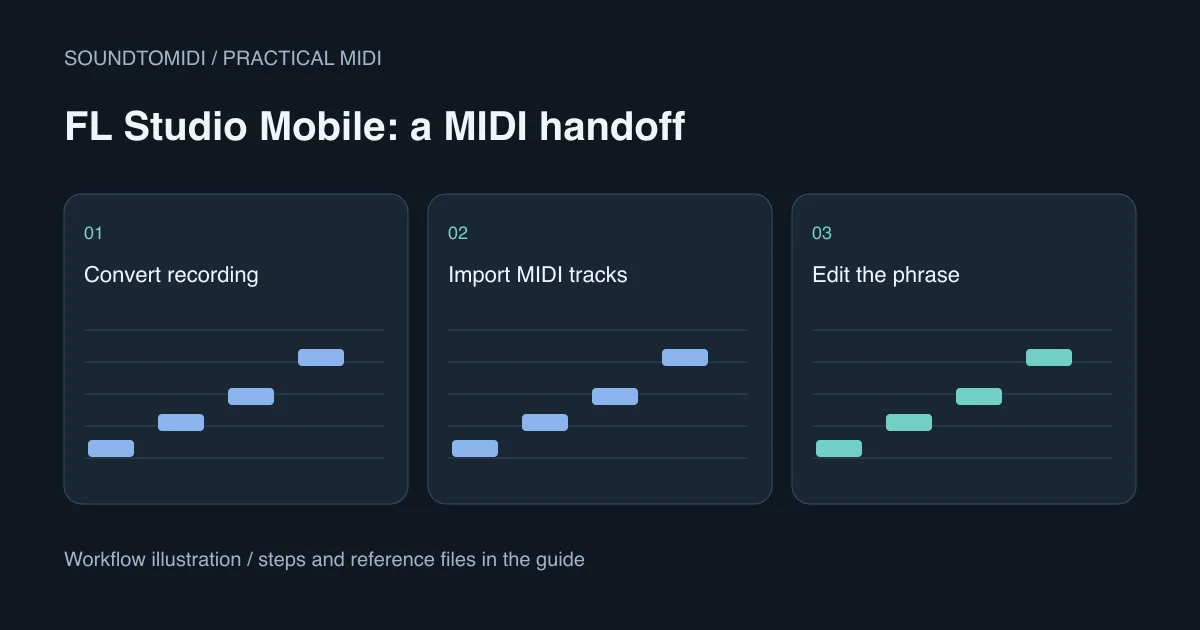
To use audio as MIDI in FL Studio Mobile, first obtain a MIDI transcription, then import its note tracks into an instrument channel. Importing an MP3 as an audio clip is not transcription. Saving a project as MIDI is also not evidence that recorded audio has been converted into notes.
The workflow below uses a separate converter and FL Studio Mobile’s documented MIDI import. It does not require a desktop NewTone window on your phone. We checked Image-Line’s published instructions; we have not tested every Android or iOS device or claimed that all desktop FL Studio features exist in Mobile.
Know which part of the task each app performs
| Step | Input | Expected result |
|---|---|---|
| Transcribe | A short recording | A .mid file containing note events |
| Import | The .mid file | Editable notes in a Mobile instrument channel |
| Audition | Notes plus an instrument | Sound you can compare with the recording |
| Correct | The imported notes | A usable musical phrase |
Image-Line documents Import MIDI Tracks in the Mobile Playlist, separately from importing samples and saving MIDI. The current product overview lists audio recording, pitch correction and MIDI export. Those labels alone do not establish a desktop-style NewTone transcription workflow on a phone.
If you are using desktop FL Studio instead, follow the NewTone and browser comparison. Keeping the two applications separate prevents a long search for a button that belongs to a different interface.
Prepare a small source before leaving your project
Export or record one melody, bass line or isolated instrument. Use a short section with clear attacks. Keep a copy of the original project and audio so you can compare them after import. A full song with several instruments is harder to transcribe and may produce a crowded piano roll.
If you know the source tempo, note it down. Also note where the phrase begins: a pickup before the first bar and silence at the beginning can make a correct transcription appear misplaced. Do not trim the start casually if you intend to align the result with an existing arrangement.
Open the browser converter, choose the recording and inspect the preview. SoundToMIDI’s Raw MIDI conversion is free and runs locally; an account is not required for that download. On a phone, keep the browser open while processing. If the file cannot decode, try a short WAV export from your recording app instead of renaming the extension.
Save the actual MIDI file somewhere you can find
Download Raw MIDI and verify that the saved file ends in .mid. On mobile, a browser download may be in a Downloads folder or the device’s file manager rather than inside FL Studio Mobile. Use your operating system’s share or file-copy controls to make it available to the app.
Image-Line’s Home Panel file guide documents the My MIDI location and its connection to the channel import menu. Storage paths differ by platform and installation. Follow the current app’s file picker; do not copy an old Android path from an unrelated tutorial or change system permissions unnecessarily.
A useful first check is to locate the downloaded file in your file manager before opening the music app. If it is a web page or an empty download, importing it repeatedly will not help.
Import into an instrument channel
In FL Studio Mobile, open the destination channel’s menu and choose Import MIDI Tracks. Select the .mid from the available files. The manual describes the imported tracks as being added to the selected channel. Load a suitable instrument, open the notes and audition the phrase.
Do this in a copy of your project or an empty project first. Confirm that you see note blocks rather than a waveform. If you hear nothing, test the instrument with its keyboard. If the instrument itself is silent, the converter is not the next thing to troubleshoot.
Try our four-note MIDI reference if you need a small file with known contents. It has four quarter notes, MIDI numbers 60, 62, 64 and 67, at 120 BPM. This is a constructed import reference, not a claimed Mobile conversion result.
Check tempo, note lengths and the first attack
Set the intended project tempo and compare one phrase with the original audio. If everything plays twice as fast, inspect tempo and note spacing before cutting notes by hand. The MIDI speed guide explains the difference between changing BPM and changing the notes’ positions.
If notes run into each other, check whether that is intended legato or unwanted transcription tails. Do not delete all overlaps in a chordal part: several simultaneous notes may be the chord you wanted. Use the overlap guide to distinguish repeated-note collisions from legitimate harmony.
The handoff is complete when you can play, edit and reuse the phrase in your Mobile project. A successful download alone is only the intermediate step.