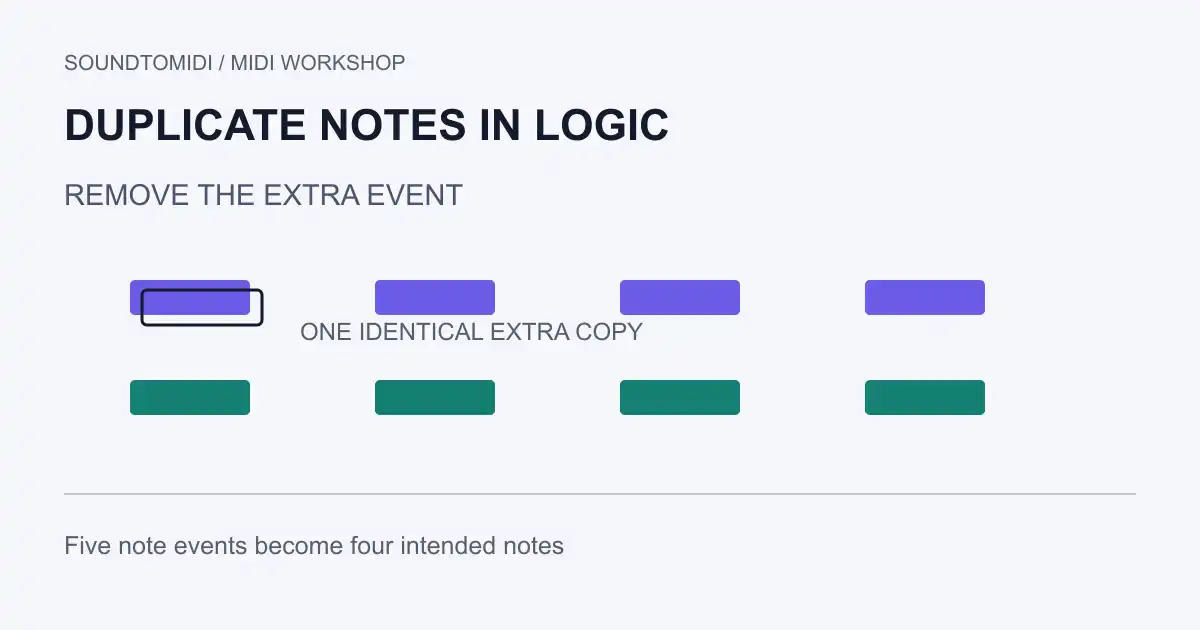
In Logic Pro for Mac, select the relevant notes in the Piano Roll and choose Edit > Delete MIDI Events > Duplicates. First duplicate the region or project and inspect the result before saving over anything. This is a targeted cleanup for duplicate events, not a command to make every overlapping passage monophonic.
The menu path is documented in Apple’s Delete notes guide. This walkthrough follows that documentation; we have not run a native Logic Pro session for this article. Menus and assigned key commands can differ across versions, so use the named command rather than an assumed shortcut.
Establish what is actually duplicated
A rectangle in the Piano Roll can hide another event underneath it. Before deleting, inspect the event count and compare pitch, channel, start, length and velocity. Logic’s duplicate command can remove events even when their velocities differ: Apple defines duplicates by matching position and pitch on the same channel, including positions made simultaneous by current quantization. Different channels are excluded. Preserve expressive variations before applying it. Two notes that start together are not necessarily duplicates: a chord needs different pitches, and layered parts may deliberately share a pitch across separate tracks or channels.
A reported symptom in this Logic Studio discussion is a note left underneath another after moving the visible one. That is a useful reason to inspect the event data, not evidence that every similar editing symptom has the same cause.
Keep an untouched copy of the region. If you only compare the edited view to your memory, it is easy to miss a quiet intended note that disappeared.
Work through a small reference
Download the original pair and import them into separate tracks or separate empty projects:
The files use channel 1, 480 PPQ and 120 BPM. Here is the before version:
| Pitch number | Start tick | Duration | Velocity | Intended treatment |
|---|---|---|---|---|
| 60 | 0 | 240 | 80 | Keep one copy |
| 60 | 0 | 240 | 80 | Remove this identical extra copy |
| 64 | 480 | 240 | 80 | Keep |
| 67 | 960 | 240 | 80 | Keep |
| 72 | 1,440 | 240 | 80 | Keep |
The after file contains exactly four notes. It preserves their starts, lengths, pitches and velocities. We verified the files with an independent parser. This checks the reference data; it does not assert that a particular Logic version was tested against it.
Use MIDI pitch numbers when comparing event lists because octave labels differ between applications. The duplicate is the second occurrence of the complete event pattern, not simply any other note numbered 60 anywhere in the song.
Run the command on a limited selection
- Open the copied region in Logic’s Piano Roll. Confirm that you are editing the intended region rather than a neighboring or linked part.
- Select the short passage that contains the suspected duplicates. Start with a few beats instead of the whole arrangement.
- Run Edit > Delete MIDI Events > Duplicates.
- Inspect the event list and compare it with the untouched region. For the supplied example, the target is five note events becoming four.
- Listen from before the passage and through the following notes. Undo if an intended attack or layer is missing.
- Export a new copy only after that check; reopen the export to confirm that its event count matches the result you intended.
If the event count does not change, do not keep running the command in the hope that it will fix a different problem. Inspect their pitch, channel and effective position, including the region’s current quantization. A different velocity alone does not protect a note from this command. Use manual editing when you need to preserve an intentional variation.
What this cleanup will not fix
A long note that reaches into a later note is an overlap, not necessarily an exact duplicate. Shortening its end may be appropriate, but deleting the entire later note could erase a deliberate repeated attack. Use the overlapping-note guide for that distinction.
Two different pitches beginning together can be a chord. Two matching pitches on separate instrument tracks may be intentional doubling. A sustain pedal or a long instrument release can also make sound continue after the displayed note ends. None of those observations alone justifies duplicate deletion.
If doubles return after another recording pass, inspect the recording and routing setup before cleaning the same region again. Preserve a small before/after example and note which input or track produced it. A repeatable capture problem needs a routing diagnosis; this article’s file cleanup does not prove its cause.
SoundToMIDI can inspect simple note data, but it does not offer Logic’s duplicate-removal command. Use the reference files to understand the change, then keep the final cleanup in the application that owns your complete arrangement.