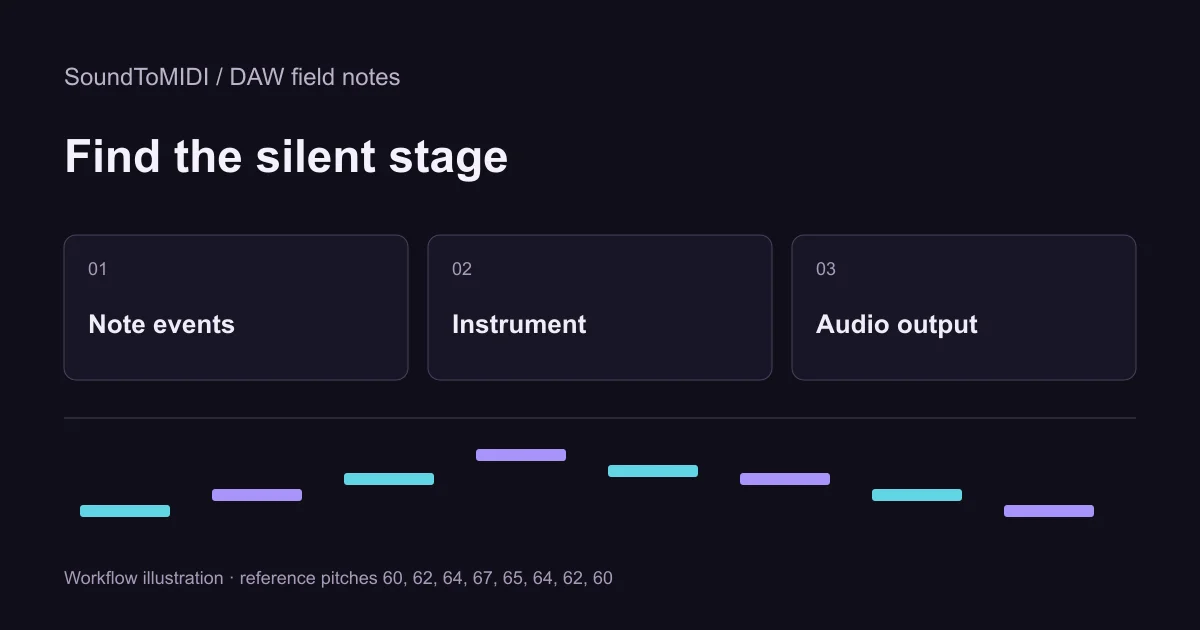
If a MIDI file has no sound, first check whether it contains notes and whether those notes are reaching an instrument. A MIDI file stores events, not an audio recording. A silent file can therefore be perfectly valid while the playback setup is incomplete.
Start with a copy of the project and keep the original MIDI unchanged. The fastest useful test is to play one known MIDI file through the same instrument, then play your own file. That comparison tells you where to investigate without repeatedly transcribing the same recording.
Check the file before the speakers
Open the MIDI in your application’s note editor or event list. Zoom out to include the whole item. Look for actual notes, their start times and their durations. A region with a filename is not proof that it contains playable notes.
If the editor is empty, try importing the original downloaded file into a new project. Check that you did not import a ZIP, an HTML error page saved by the browser, or an audio file renamed to .mid. Renaming MP3 to MID does not convert it. If a genuine conversion produced no notes, return to a clearer short excerpt of the source audio.
If notes appear only far after the start, move playback to their location. Do not erase the initial space until you understand whether it is intentional. A note that starts outside the active loop will not sound just because its region is selected.
Put a sound-producing instrument after the notes
Ableton’s MIDI file troubleshooting guide explains that imported MIDI needs an instrument. Use a simple piano or synthesizer preset for this test. A MIDI effect, EQ or reverb alone is not a sound source.
In GarageBand, import the file into a software instrument track and choose its sound in the Library, following Apple’s import instructions. In other DAWs, check that the MIDI region belongs to the track hosting the instrument, or is deliberately routed to that track.
A sampler with no sample loaded may remain silent even though it is technically an instrument. A drum kit may only respond to certain keys. Before changing the notes, try a plain pitched preset with a broad playable range.
Use the same reference on both paths
Download this manually corrected eight-note MIDI. It contains pitches 60, 62, 64, 67, 65, 64, 62 and 60. Listen to the matching synthetic source MP3 if you want to recognize the phrase. The instrument in your DAW will sound different from the audio source; that is normal.
| Reference MIDI | Your MIDI | What the comparison suggests |
|---|---|---|
| Silent | Silent | Investigate the shared instrument, routing and audio output |
| Audible | Silent | Inspect your file’s notes, channels, timing and controller events |
| Audible | Audible but musically wrong | Correct the transcription rather than the output setup |
| Audible in a new project only | Silent in the working project | Compare track and project settings |
This is a troubleshooting exercise, not a guarantee that the reference will configure an application for you. Keep both files on equivalent tracks with the same instrument. Otherwise you are changing more than the file and the comparison becomes ambiguous.
Follow the meters toward the output
Play a note inside the region. Check the track meter, then the master meter, then the selected audio device. If the track produces signal but the master does not, inspect the track’s destination, mute state and any soloed tracks. If the master produces signal but you hear nothing, check the chosen output device and its volume.
If you send MIDI to an external hardware synth, MIDI alone does not bring the synth’s audio back into the computer. You need to listen to the hardware output or connect that audio output to a monitored audio input. Do not change a working MIDI file to solve an unplugged audio return.
If only some notes are silent, inspect the instrument’s key range and MIDI channel response. Try the known reference on the same channel. Work on a copy before removing controller events or changing channels; a multitimbral project may rely on them.
Separate silence from a disappointing transcription
Once you can hear the result, compare it with the original recording. Our archived automatic Raw MIDI has ten notes, including two extra notes at pitch 74, although the intended synthetic phrase has eight. Those extra notes are a transcription issue, not a playback failure.
For your own recording, check missing notes, extra notes, octave errors and repeated-note timing before choosing a more elaborate instrument. A rich preset can conceal mistakes without correcting them. If you need a new transcription, the audio-to-MIDI tool provides a free Raw MIDI download that you can keep and edit in your DAW.
Save the working instrument setup once the reference and your result both play. Keep the untouched MIDI and a separately named corrected version. That way a later sound-design change will not make you repeat the entire audio conversion just to recover a file that was already usable.