For an audio-to-MIDI workflow in GarageBand, transcribe the recording first, then import the resulting MIDI into a software instrument track. Dragging an MP3 into GarageBand imports audio; it does not by itself recover editable note events.
Apple’s Mac import guide documents separate paths for audio and MIDI. The workflow here uses that distinction instead of promising an audio-to-MIDI menu. You need an audio file you can use, a MIDI transcription of it, and a GarageBand project in which to check the notes.
Make the MIDI before opening your full project
Choose a short, clear part of the recording. For a voice memo, use a phrase with one sung or hummed melody and little background music. For piano, choose a passage where the notes are audible rather than a mix dominated by drums or reverb.
Use the voice converter for a vocal source or the piano converter for piano. Select the audio, inspect the chosen passage, convert it and compare the original with the MIDI preview. Download the free Raw MIDI when the notes are useful enough to edit. The transcription runs locally in the browser; optional cloud and AI features have separate controls.
Do not rename the source MP3 to .mid. A filename change cannot create pitches or note boundaries. Keep the downloaded MIDI beside the original audio so you can compare both in the next application.
Import on Mac
In GarageBand on Mac, drag the MIDI from Finder onto a software instrument track or the empty space beneath the tracks. Apple documents that MIDI may create one or more software instrument tracks. Choose the sound in the Library and play the imported region.
Use a new project for the first test if your existing project has many muted tracks, effects or unusual routing. You can then move the verified result into your working project with fewer variables to troubleshoot.
If dragging opens a different project, return to the intended project window and drag the file into its Tracks area rather than double-clicking the file in Finder. Check that you are using the .mid output, not the original audio download. A waveform is a useful clue that you imported the audio again.
Import on iPhone or iPad
Save the MIDI somewhere visible in Files. In GarageBand, open Tracks view and use the Loop Browser’s Files section to locate it. Drag the file into the Tracks area at the intended starting point. Apple provides separate iPhone instructions and iPad instructions.
Before importing a longer file, set the song section length to Automatic. Apple’s guides explain that an imported region can otherwise be limited by the current song section. If the beginning plays but the ending appears missing, check this setting before blaming the transcription or attempting another conversion.
A downloaded file that has not finished saving cannot be reliably imported. Confirm that Files shows the MIDI in the location you selected. Avoid repeatedly tapping different download buttons and then guessing which copy belongs to which attempt; rename the saved result with the phrase you actually used.
Run a small handoff check
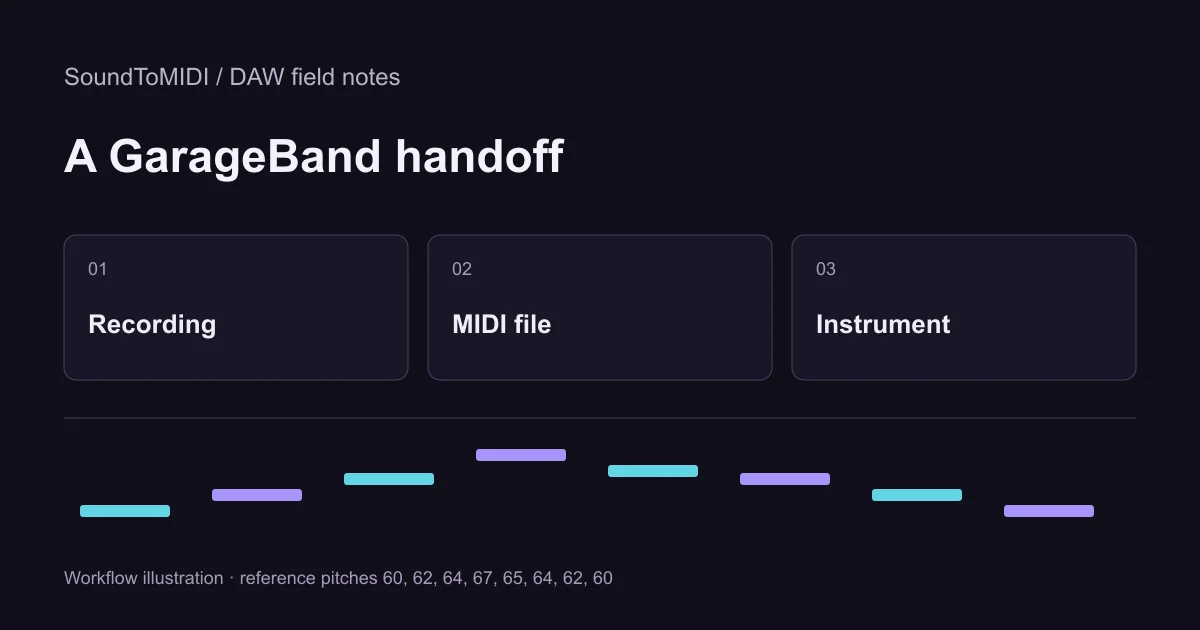
Our corrected eight-note MIDI is a useful test file. It contains pitches 60, 62, 64, 67, 65, 64, 62 and 60. Import it, select a plain piano sound and listen for eight attacks. Compare with the source MP3 to understand the melody.
The files are owned synthetic examples. The corrected MIDI is a manual reference, not an untouched automatic conversion. Our archived Raw MIDI contains ten notes, including two extra notes at pitch 74. Use that version if you want to practice identifying and removing unwanted notes.
We have not measured a GarageBand transcription accuracy score: this is an import and editing exercise. Its purpose is to separate “my MIDI does not play here” from “my transcription contains musical mistakes.” Once the reference works, repeat the same import path with your own result.
Resolve the mismatch you can actually hear
If the instrument is silent, inspect whether the region has notes and whether a software instrument is loaded. Use the silent MIDI checklist if the reference is also silent. Converting the original again will not fix a muted output.
If the melody is recognizable but too fast or slow, inspect the project tempo and region timing before shifting individual notes. If the rhythm is correct but the register is wrong, compare note numbers and the original recording. If only the last part is missing on mobile, recheck the song section and region length.
Finally, save the GarageBand project and retain the MIDI you imported. The project preserves your chosen sounds and edits; the separate MIDI preserves the note handoff. Neither is a substitute for keeping the original recording while you are still checking the result.