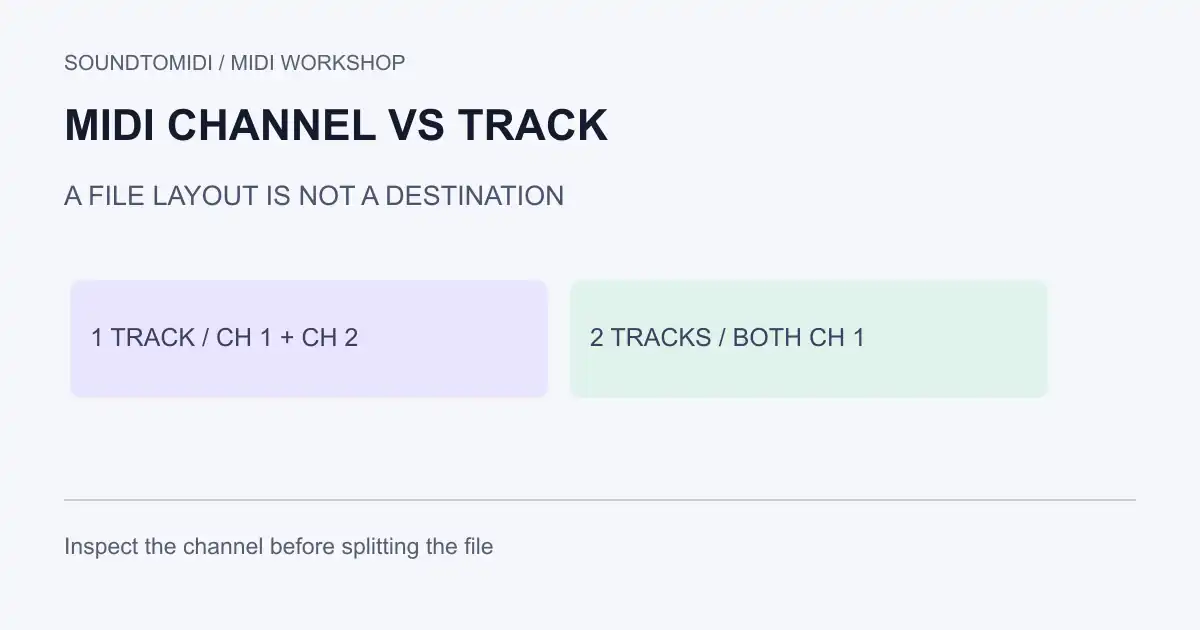
A MIDI track organizes events in a file or sequencer. A MIDI channel tells a receiving instrument which part should respond. Two tracks can send to the same channel; one file track can contain several channels. Moving notes onto a new track does not necessarily give them an independent sound.
That distinction matters when a piano and bass suddenly use the same patch, or changing one part’s volume changes another. Before splitting the file again, check the receiving port, channel and instrument.
Compare two small files
These are original, constructed reference files, not audio-transcription results. Both contain four notes and use 480 ticks per quarter note at 120 BPM. Download them without signing in:
| File | File organization | Note destinations |
|---|---|---|
| One track, two channels | One Type 0 track | Notes 60/64 on channel 1; notes 48/55 on channel 2 |
| Two tracks, one channel | Two Type 1 tracks | All four notes on channel 1 |
The first file can drive two separate parts on a multitimbral instrument despite containing only one track. The second can appear as two rows in a sequencer while still addressing one receiver part. Your importer may reorganize the tracks automatically, so inspect the event channel rather than counting visible rows.
The files have been checked with a MIDI parser. Their organization is verified; a particular synth’s routing and sound must still be checked in that synth.
What each setting controls
| Setting | The question it answers |
|---|---|
| File track | Where are these timed events stored? |
| DAW track | Where does the application let me arrange and route this part? |
| Output port or plug-in instance | Which destination receives the messages? |
| MIDI channel | Which part at that destination should respond? |
| Program and bank | Which sound should that part select, if supported? |
A conventional MIDI 1.0 connection provides 16 channel numbers, usually displayed as 1–16. The track count is not a limit of 16. More ports or independent plug-in instances create separate destinations; channel 1 on one instrument need not affect channel 1 on another.
The MIDI Association’s Standard MIDI Files overview describes tracks, timing and descriptive metadata. GNMIDI’s track/channel explanation shows why the two numbers are not interchangeable.
Fix two parts that change sound together
- Duplicate the project before changing routing. Keep the original MIDI file available.
- Solo the first part and identify its actual output instrument or hardware port.
- Inspect the notes’ channel values. Also check whether the DAW track overrides them with a fixed output channel.
- Inspect the second part in the same way. If both feed the same instrument part, assign different receiving parts/channels or use separate plug-in instances.
- Move the associated program, volume, expression and pedal events with the intended part. Changing only the note channels can leave the controls behind.
- Play from the beginning, then from a later section. Check both sounds, note endings and controller changes.
An instrument listening in an all-channel mode can still combine messages. Distinct channel numbers alone do not prove that the receiver separates the parts. Conversely, separate plug-in instances may work perfectly while both tracks use channel 1.
When splitting helps
Split by channel when you want to edit already separate channel parts. Split by pitch or musical role only when the file actually contains the information needed to distinguish those roles. A piano chord does not become separate piano and guitar performances merely because its notes are placed on separate tracks.
Our split MIDI tracks guide covers the practical reorganization. If the only issue is device compatibility, check Type 0 versus Type 1 before changing channels or deleting events.
Check the exported file, not just the project
Export a short section, reopen it in a blank project and inspect the same port/channel assignments. A file can retain the correct notes while a receiving application substitutes instruments or combines parts. Send an audio reference alongside MIDI when another musician needs to hear your intended sound.
SoundToMIDI’s MIDI editor is for note editing. It is not a multichannel routing or controller-preserving round-trip editor. Keep bank, channel and automation work in a MIDI sequencer that exposes those events. If you only have a recording, start with audio-to-MIDI conversion, then assign instruments to the resulting notes in your DAW.