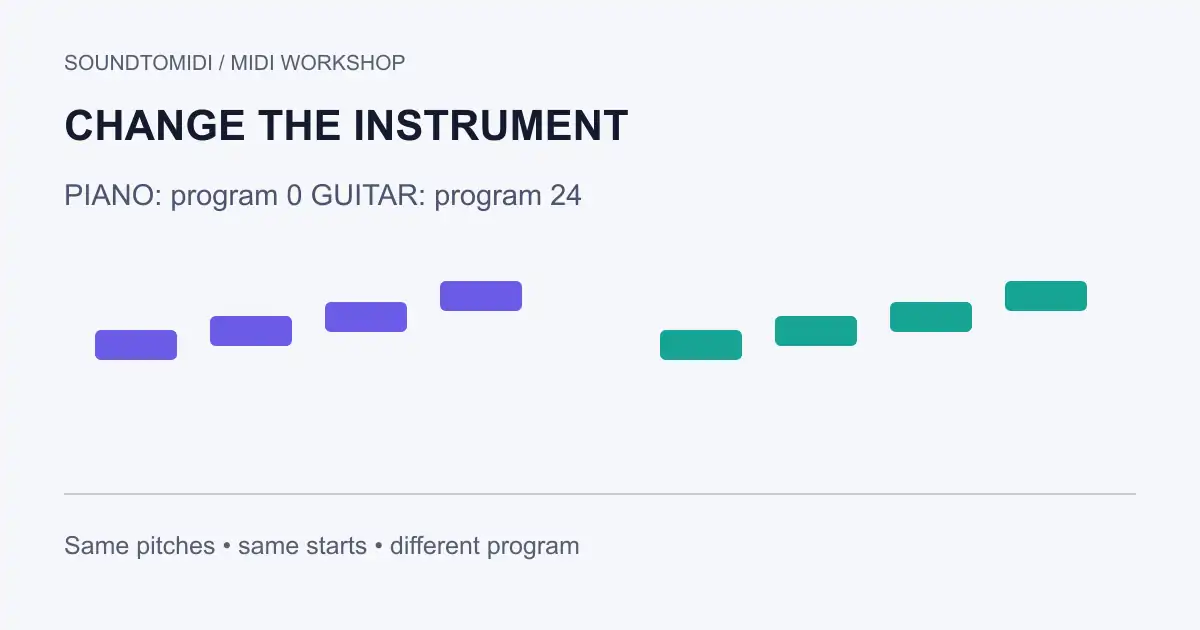
To change a MIDI instrument, change the sound assigned to its track or channel. Keep the note events unchanged. In a DAW that usually means choosing another instrument or preset; in a General MIDI player it may mean editing a program-change message saved in the file.
These choices do not do the same job. A plugin preset belongs to the project and may not travel inside an exported .mid file. A program change travels as a MIDI instruction, but the receiving synthesizer decides how to interpret it. If you need someone else to hear exactly your chosen sound, also send an audio render.
Decide what must travel with the file
| What you are changing | Where it is normally stored | What the recipient needs |
|---|---|---|
| Notes and their timing | MIDI events | A MIDI-capable instrument |
| A GM sound selection | Program-change events | A compatible GM sound set |
| A particular plugin preset | DAW or plugin state | The matching plugin and preset |
| The sound as heard | Rendered audio | An audio player |
The MIDI Association’s General MIDI explanation describes a shared assignment of instrument names to program numbers. It does not specify identical acoustic samples across all synthesizers. Two compatible players can both select an acoustic piano and still sound different.
Compare instructions before comparing sound
Download our piano-program example and guitar-program example. These are constructed MIDI files with the same four notes, start times, durations and velocities. Only the initial program selection changes: raw program value 0 versus 24 on the same channel.
A GM-compatible player commonly labels those as program 1, Acoustic Grand Piano, and program 25, Acoustic Guitar (nylon). Some editors display zero-based values instead. Check how the destination numbers its patches before choosing a program one position too high. The raw values are included here so the comparison does not depend on a particular editor’s display convention.
Open both in the same player. If they sound identical, the player may be overriding or ignoring their program messages. That is a useful diagnostic result; it is not evidence that the files have identical event data. If you choose a fixed plugin preset for both files, hearing the same sound is expected.
A practical DAW procedure
- Import a copy of the MIDI into a project and locate the track that contains the intended part.
- Assign a software instrument and select a sound with a suitable range. Start with a plain piano if you are checking notes.
- Solo the part and play from before its first event. Confirm that the sound receives the track’s MIDI channel.
- Look for program changes if the patch switches back when playback starts or reaches a particular point.
- Save the project, then decide whether the handoff needs MIDI instructions, audio, or both.
Do not delete every controller event just to stop one patch change. Sustain, expression and other controllers may be part of the performance. Inspect the event type and channel, make a copy, and remove or replace only the unwanted sound-selection events. A controller change and a program change are distinct messages.
Why the new instrument can sound wrong
Changing a patch does not rewrite the performance for that instrument. A long piano chord may become an unrealistic guitar voicing. A wind instrument patch may receive simultaneous notes that one player cannot perform. A bass sound may be triggered well above its useful range.
First check whether the problem is a wrong note or an unsuitable performance. Use transposition for a deliberate pitch shift, but do not move notes merely to compensate for the wrong instrument assignment. Adjust articulation and arrangement separately when adapting the music for a different player.
Drums need a different check. Their note numbers select kit pieces in many mappings. A pitched preset on a drum channel can turn a rhythm into a strange melody; a drum kit on a melody track can do the reverse. The drums-to-MIDI guide explains why the destination map matters.
Verify the exported result elsewhere
Reopen the exported .mid in a new project with a compatible instrument. Check that the intended program message is present, that it occurs before the notes it should affect, and that later messages do not undo it. If the export is only notes, choose the instrument again in the receiving project.
SoundToMIDI’s MIDI editor can help inspect pitches and timing, but it is not a general-purpose bank/program editor or a guarantee of multitimbral playback. Keep detailed sound assignments in your DAW. For a recipient who simply wants to listen, export audio as well as MIDI so a missing plugin does not become their next troubleshooting task.