To split a MIDI file into tracks, first check whether its parts are already separated by track, by MIDI channel, or only by pitch. Channel separation is useful for independently addressed parts. Pitch separation is useful for placing kick, snare and other drum notes on separate tracks. Neither operation separates instruments from a mixed audio recording.
Keep an untouched copy of the MIDI file and work in a new project. Before changing anything, note the tempo and listen to the full arrangement. A successful split preserves the timing and controllers the parts need, not just their note rectangles.
Inspect what the file actually contains
Open the file in your DAW and inspect its track list and event list. A format 0 file has one stored track but may carry multiple channels. A format 1 file can have several tracks, including a track containing tempo data rather than notes. The format comparison provides a matching pair you can inspect.
Choose the operation from the structure:
| Situation | Useful operation | What to verify |
|---|---|---|
| Melody on channel 1, bass on channel 2 | Separate by channel | Both parts retain their original starts |
| Drum kit on one channel, different pitches | Separate by pitch | Each lane still triggers the intended drum |
| Several named instrument tracks already exist | Select or export those tracks | Tempo and necessary controllers accompany them |
| Melody and chords share one channel | Manual musical selection | A simple channel split cannot identify the instruments |
If you see notes in only one channel, do not repeatedly run a channel splitter and expect a different result. Decide whether pitch ranges or manual selection can separate the musical parts. Parts crossing in pitch usually need listening and judgment.
A documented Logic Pro route
Apple’s Logic Pro guide documents separating MIDI regions by event channel or note pitch. Select the region, then use Edit > Separate MIDI Events > by Event Channel for channel-based parts. For a drum region, choose Edit > Separate MIDI Events > by Note Pitch instead. Check the menu in your installed version; this is a documented Logic workflow, not a claim that we tested your installation.
After separation, inspect the resulting track destinations. Separate regions do not necessarily mean separate instruments or separate mixer processing. If your goal is to put an effect on only the snare, make sure that part has the intended audio route as well as its own MIDI region.
Save the project before exporting. A DAW project can retain instrument and routing choices that an ordinary MIDI file does not carry in the same form.
Use a known two-part reference
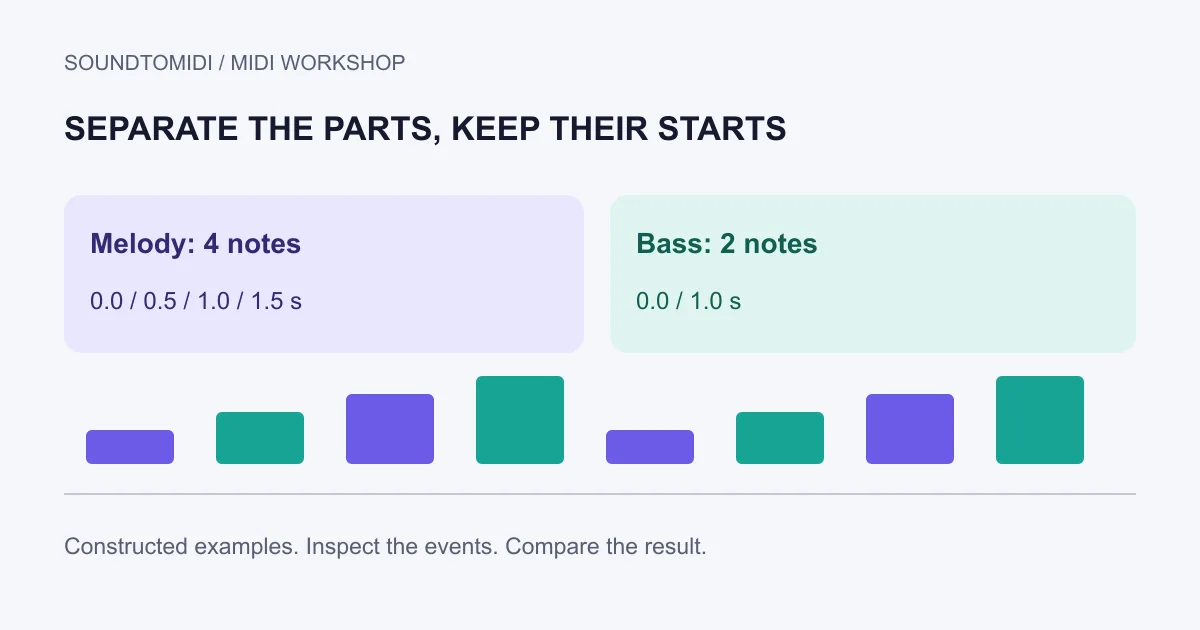
Download our two-channel reference. It contains four melody notes on channel 1 and two bass notes on channel 2 at 120 BPM. After separating channels, the melody should still start at 0, 0.5, 1.0 and 1.5 seconds. The bass starts at 0 and 1.0 seconds.
The melody-only and bass-only files show the intended separation. They were constructed from the same event specification; they are not exports from Logic. Import them together at the same starting position. Six notes in the combined result should reproduce the original note sequence.
This small check catches a common mistake: exporting each part from its first note rather than a shared song position. A part with an opening rest must keep that rest if the files are to align later. Use a common export start and inspect the first attack after reimporting.
Keep the information around the notes
Pedal events, pitch bends and channel expression can be essential to a part. Splitting just note-on and note-off events may change how it sounds. Keep each channel’s relevant controllers with that channel, and preserve the tempo map when moving parts into a new project.
For drum-note separation, be careful with controllers shared by the whole kit. Audition each lane, then the complete kit. Some sample libraries use their own note mapping, so a familiar MIDI note number is not enough to establish the drum sound. The drum conversion guide includes a deliberately simple mapping test.
SoundToMIDI’s standalone editor is useful for local note inspection and correction; it is not a multitrack demixing workstation. Use a DAW for this separation task. If you need notes from audio first, begin with an isolated source in the free converter, then inspect what was actually detected before deciding how to divide it.