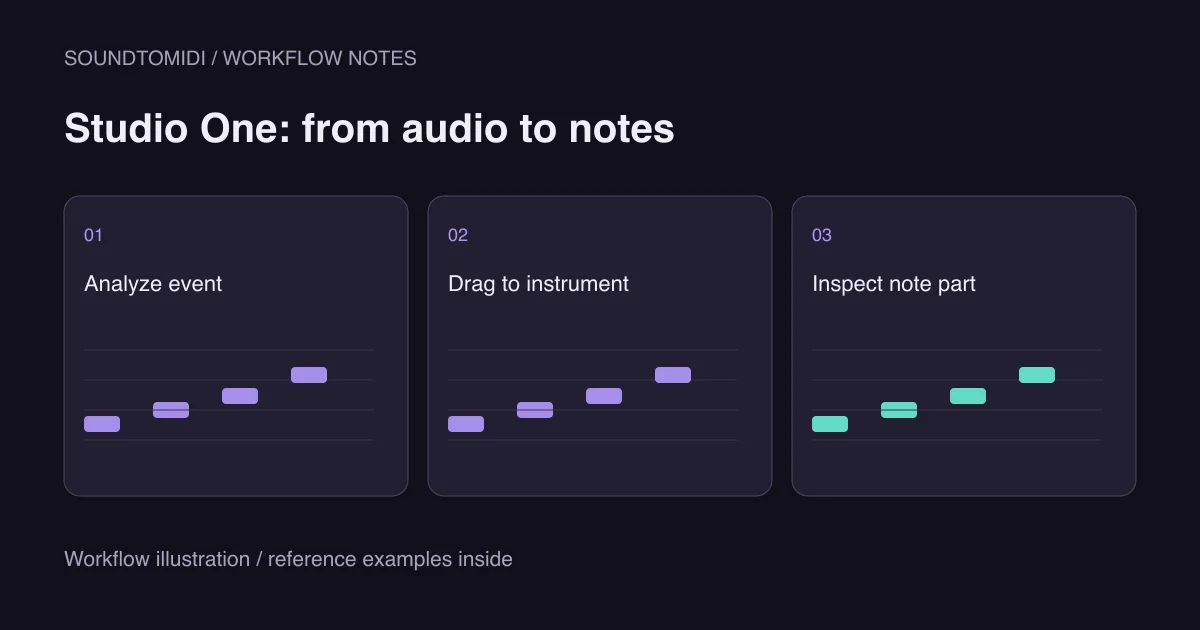
The Melodyne workflow for audio to MIDI in Studio One is to analyze an audio event with Melodyne, then drag that event onto an instrument track. Dragging an ordinary waveform without that analysis is not the same operation. The destination should contain editable notes, and it needs a virtual instrument to produce sound.
Celemony’s Studio One integration guide documents this ARA handoff. Your installed Studio One and Melodyne versions determine which features are available. Do not buy an upgrade solely because an old video shows a menu you cannot find; first check your existing installation, activation and edition. We verified the documentation, not a native Studio One session on every version.
Start with one part you can recognize
A clear bass or vocal melody is a useful first recording. Keep it short enough to compare note by note. Background chords, long delays and a second melodic instrument can make the note data harder to interpret. Even when a detector produces many notes, it may not have isolated the part you wanted.
Keep the original event and work on a copy. Listen to the exported or selected audio itself, rather than assuming the session’s solo and mute settings are reflected in the file. A wrong source selection can produce a technically valid MIDI part with the wrong musical content.
For polyphonic material, verify the capabilities of your installed Melodyne edition and chosen algorithm. A monophonic melody workflow is not a promise to recover all instruments from a finished song. If the target is a single tune within a full mix, obtaining an isolated recording may save more work than trying many detector settings.
Analyze, then move the event
- Select the audio event you want to use and open Edit with Melodyne through your version’s event command.
- Wait for analysis. Inspect the detected notes and correct obvious pitch or boundary errors where your edition permits it.
- Create an instrument track and load a simple instrument so that you can hear the result.
- Drag the analyzed audio event from the arrangement to that instrument track. Celemony’s instructions specify dragging from the top of the event.
- Open the resulting part in the note editor. Confirm that you see individual note events, not another copy of the audio waveform.
Do this in a disposable copy of the song first. It separates the handoff from unrelated routing, automation and effects in a larger session. Keep the source audio muted when auditioning the instrument part, then switch back for comparison.
If the drag does not produce notes
Check the stage that failed before repeating the whole process. Was Melodyne actually opened for this event? Did analysis finish? Is the destination an instrument track? Are you dragging the analyzed event rather than a different file from the browser?
If the part contains notes but is silent, the conversion and playback problems are separate. Load or select an instrument, confirm the track is not muted, then inspect its output. Our MIDI no-sound guide provides a controlled reference check. An empty part, on the other hand, sends you back to analysis and the chosen source.
PreSonus’s integration guidance also distinguishes instrument-track note data from audio when moving material into notation. A waveform on a track does not become a score merely by sending it to another application.
Use a four-note test to separate the problems
Download our four-note 120 BPM MIDI and import it onto an instrument track. Its pitches are 60, 62, 64 and 67, one quarter note each. This is a deliberately constructed test file, not an output from Melodyne or a customer recording.
If those four notes appear and play, your receiving track can handle MIDI. Return to the recording and compare the first note, the next attack and the last release. If the reference itself plays too fast, investigate project tempo and MIDI timing. If it appears under a different octave label but sounds right, check the numeric pitch before moving anything.
For your real phrase, correct one type of error at a time. Remove an obvious extra note, listen again, then address note lengths. Applying heavy quantization before deciding what the intended rhythm is can make an expressive performance harder to recover.
A route without the Melodyne handoff
If your setup lacks the required integration, transcribe a supported audio file with the local browser converter, download the free Raw MIDI and bring that into Studio One. This skips the Melodyne-dependent handoff, but it does not skip musical checking. The local converter does not upload the recording for transcription; account storage and optional cloud arrangement have separate behavior.
Keep the raw file alongside your edited version. Save the Studio One song with the selected instrument, because a standalone MIDI file does not bundle that instrument’s sound. Send collaborators both the MIDI and a short rendered reference if they need to hear how you intended it to play.