A MIDI tempo map is a sequence of tempo changes at musical positions. It lets a passage play at one speed and a later passage at another without moving their beat positions. To transfer it, the source export must include the tempo events and the destination must actually import them.
Changing one BPM field is not enough for a song with several tempo changes. If the first bars line up but later bars drift, inspect the map before stretching notes or changing the audio sample rate.
Check a two-tempo reference
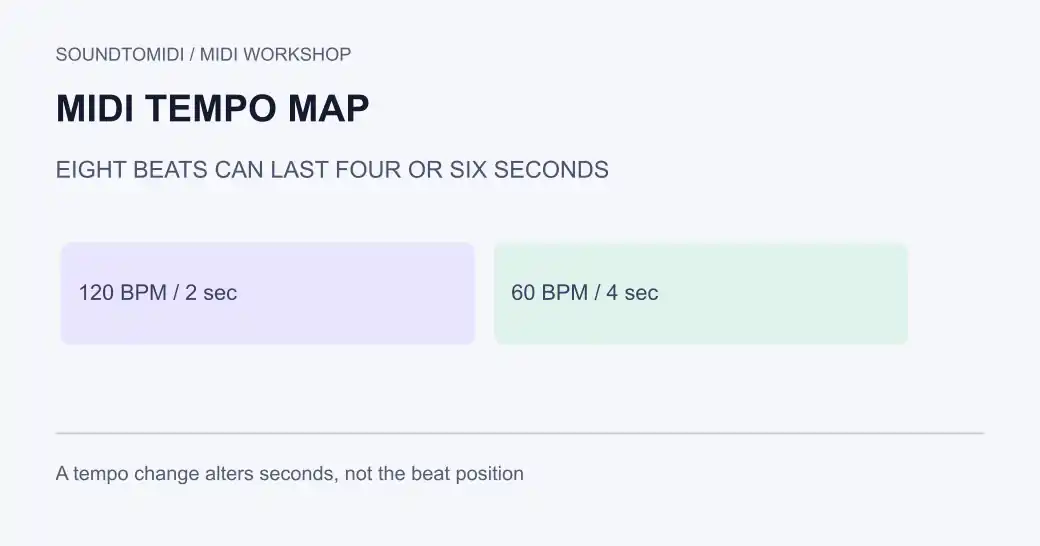
Download our 120-to-60 BPM tempo-map example. It is an original constructed file with 480 ticks per quarter note, not a claim about a transcribed performance.
| Position | Tempo event | Expected elapsed time |
|---|---|---|
| Tick 0 | 120 BPM | 0 seconds |
| Tick 1920, after four quarter notes | 60 BPM | 2 seconds |
| Tick 3840, after four more quarter notes | No additional change | 6 seconds |
A low reference note spans all eight beats. Short upper notes mark each beat. The first four beats occupy two seconds; the next four occupy four seconds. An independent MIDI parser confirms the event positions and calculated six-second duration.
The comparison file, constant 120 BPM, has the same notes at the same ticks but no change to 60 BPM. Its eight-beat reference note lasts four seconds. This is why an import can keep the piano-roll pattern yet change the performance’s timing.
Import the map into another project
- Save a copy of the receiving project, especially if it already has tempo automation.
- Export MIDI from the source application using an option that includes its tempo changes. Check that this is a song-level export rather than a note clip with limited metadata.
- Place a reference note or notes across the full section when required by the receiving application. This helps avoid importing only part of the intended span.
- Import using the destination’s tempo-map option. Decide explicitly whether its existing tempo map should be replaced, retained or merged.
- Inspect at least one point before and one point after every change. Check both bar/beat positions and elapsed seconds.
- Save and reopen the destination project, then play the transition with a metronome or audio reference.
The Mido file documentation explains the relationship between ticks, tempo and time. PPQ defines the tick grid; it does not independently set how fast a quarter note plays. See our PPQ guide if the two files use different resolutions.
Ableton Live: a documented import route
Ableton’s tempo-map import instructions specify a MIDI file containing notes that span the tempo changes. Bring it into an Arrangement View MIDI track and accept the prompt to import the tempo information. Then inspect the song-tempo automation on the main output track.
Its help article also states that Live cannot export a tempo map directly and points to an audio-based workaround for a receiving application that supports tempo extraction. Do not assume that exporting a MIDI clip is the reverse of importing a complete tempo map.
These are documented software instructions, checked against Ableton’s support page. We have verified the downloadable file’s events and timing, not run a native Live session on your operating system. Interface labels can differ between versions; the test is whether both tempo points appear and the reference note ends at six seconds.
Diagnose the kind of mismatch
Everything is uniformly too fast: compare the initial BPM and whether a fixed project tempo replaced the file tempo. That is the simpler case covered in MIDI playing too fast.
The opening matches but a later section drifts: compare the later tempo events and their beat positions. Missing changes are more plausible than a single wrong initial BPM, but verify the event list before concluding.
The sound matches but bar lines differ: inspect the meter and bar numbering. A time-signature change is separate from a tempo change.
The notes moved in seconds after re-export: reopen the output and compare the map and PPQ, then the note tick positions. Preserve the original file while investigating.
Avoid a destructive round trip
SoundToMIDI’s current MIDI editor imports notes for local editing and uses an initial tempo setting. It is not a tempo-map preservation tool. Keep a changing-tempo project in a sequencer that retains its map; do not flatten it through a note-only editor as a repair step.
When the starting material is a recording, audio-to-MIDI conversion gives you candidate notes to check. It does not guarantee a complete musical tempo map for a freely timed performance. Keep an audio reference while you align the result in your DAW.