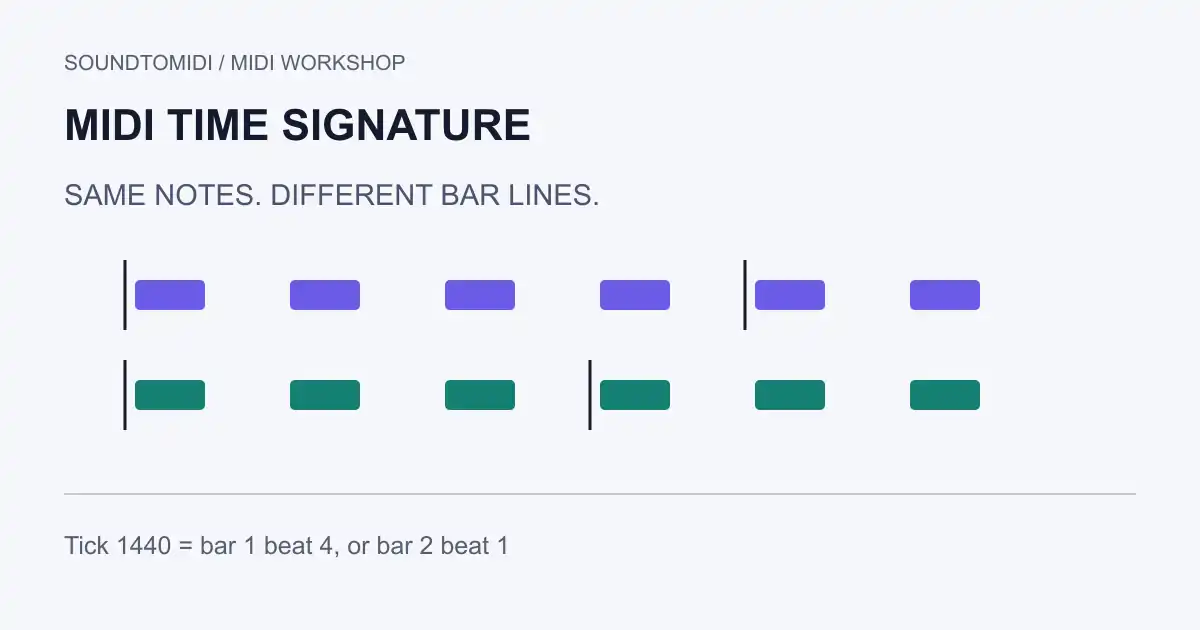
A MIDI time signature describes how beats are grouped into bars; it is not the playback speed. To make a file play faster, change its tempo. To display a phrase as three quarter-note beats per bar instead of four, change the meter. Those two edits solve different problems.
SoundToMIDI’s browser note editor does not provide a meter-map editor. Use your DAW’s time-signature or conductor track for this task, keeping the original file until you have checked the import and export.
Compare the same phrase in 3/4 and 4/4
Download our original reference pair:
Both use 480 ticks per quarter note and a tempo of 120 quarter notes per minute. The six notes begin at ticks 0, 480, 960, 1,440, 1,920 and 2,400. Every note lasts 240 ticks. Their pitches, velocities and timing are identical; only the time-signature numerator differs.
| Note start | Time at this tempo | Position in 4/4 | Position in 3/4 |
|---|---|---|---|
| Tick 0 | 0 seconds | Bar 1, beat 1 | Bar 1, beat 1 |
| Tick 960 | 1 second | Bar 1, beat 3 | Bar 1, beat 3 |
| Tick 1,440 | 1.5 seconds | Bar 1, beat 4 | Bar 2, beat 1 |
| Tick 1,920 | 2 seconds | Bar 2, beat 1 | Bar 2, beat 2 |
With the same instrument and no metronome, the note performances should have the same timing. Enable a metronome that accents bar starts and the grouping becomes easier to hear. These are constructed files checked with an independent MIDI parser, not recordings of a DAW changing meter.
What is stored in the file?
The standard time-signature meta event carries the meter and metronome-related information. It is separate from the tempo event. Mido’s meta-message reference lists those fields and their defaults. In the raw time-signature event, the denominator is encoded as a power of two: the byte 2 represents a denominator of 4, not 2/anything. An editor or library usually presents the readable denominator instead.
Most users should edit the named time-signature control rather than raw bytes. A displayed 6/8 meter also does not, by itself, tell you how a musician intends to feel the pulse. Write down whether your tempo instruction refers to quarter notes or dotted-quarter beats when exchanging a score and a MIDI file.
Change the meter safely in a project
Work on a duplicate project, especially if audio, automation or tempo changes already follow the MIDI part.
- Note the intended first beat and the location of any pickup. Do not assume the first note is a downbeat.
- Inspect the imported tempo and meter map. Some import workflows bring notes into an existing project without adopting its conductor information.
- Place the new meter at the intended bar boundary using the DAW’s meter control.
- Check the notes against absolute time and the surrounding arrangement. Confirm that a bar-based selection, loop or arrangement edit did not move them.
- Export a new MIDI file, reopen it in an empty project, and inspect both the meter map and the note onsets.
For the supplied pair, tick 1,440 is a useful checkpoint: it changes bar position but remains 1.5 seconds from the start. In your own file, choose a similarly recognizable note rather than trusting the ruler alone.
If the bars still look wrong
A pickup is not necessarily a bad time signature. A phrase beginning before the first full bar may need a shifted bar origin or a pickup setting in the destination notation program. Changing 4/4 to 3/4 just to make the first note align can make every later bar wrong.
If the meter is right but notes drift away from the beat, investigate tempo, performance timing or quantization. If the whole file plays twice as fast, start with the tempo guide. A meter change alone is not a reliable correction for either symptom.
Finally, confirm what your export preserves. Keep a meter-map-capable application in the workflow when a score or changing time signatures matter. A simplified note editor can help inspect a melody, but it should not be the only copy of a file containing conductor information.