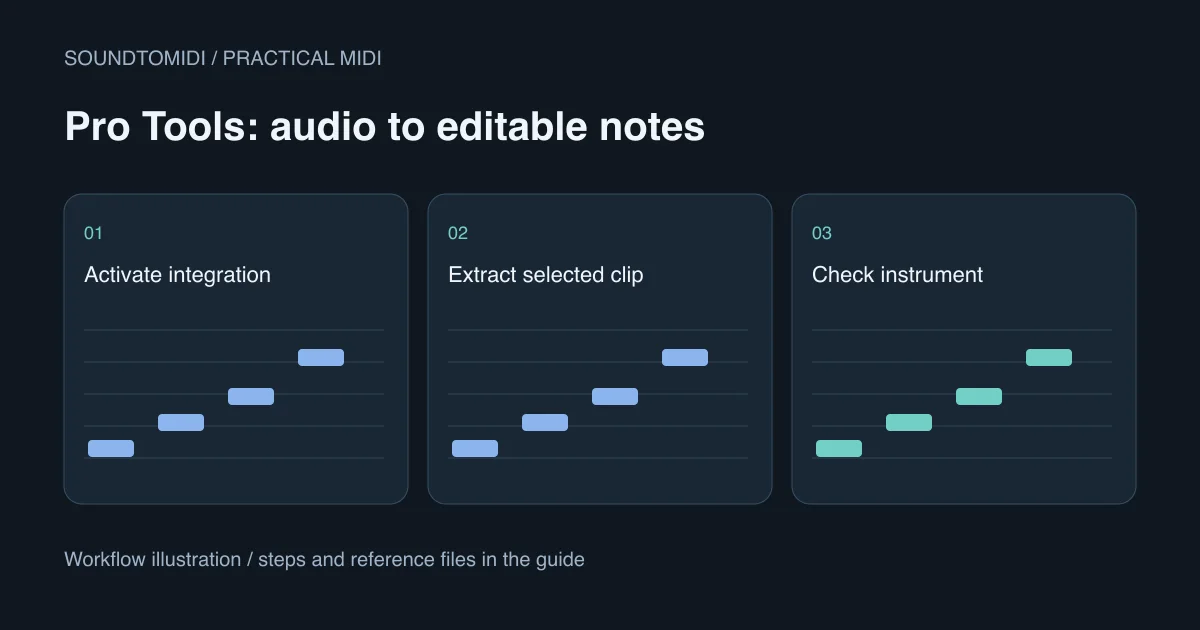
For audio to MIDI in Pro Tools, use its Melodyne-based extraction to create note data from an audio clip or track. Then play the notes through an instrument. Copying a waveform onto an ordinary audio track does not create MIDI, and the extracted notes do not preserve the recorded voice or instrument sound.
This guide describes the documented Pro Tools workflow. We have not run your Pro Tools installation or verified every edition. The first useful check is whether the required integration is installed and activated, rather than whether another conversion website promises perfect results.
Check Melodyne before troubleshooting the clip
Avid’s licensing guide says audio-to-MIDI requires Melodyne to be installed and activated. It also specifies Melodyne 5.4 for the ARA architecture used in Pro Tools 2024.6 and later. An installer containing Melodyne is not the same as an activated license.
Check your installed versions and the Melodyne entitlement in your Avid account. Do not buy another plug-in merely because the command is missing: first establish whether your existing subscription or support plan includes the required license. Follow Avid’s activation instructions for that entitlement. Avoid applying a Pro Tools 12 tutorial to a newer integration without checking its date.
Before analysis, duplicate the session or save a new version. Keep the original recording on its own track. Choose a few seconds containing clear note attacks and a quiet ending; that gives you a manageable result to inspect and a reference for deciding whether the workflow is useful.
Choose the smallest extraction that answers the task
Celemony’s Pro Tools instructions document three routes:
- For an entire track, use Extract MIDI to New Track from the track’s context menu.
- For selected clips, use Copy Audio as MIDI, then paste onto a MIDI destination.
- With an existing MIDI or instrument track, drag the selected audio clips onto that destination.
The analysis dialog lets you choose an algorithm. Match it to the material. A sung melody, a chordal piano passage and a drum loop are different transcription problems; a successful analysis dialog does not establish that every resulting note is correct. The documented integration can expose algorithms beyond those available for direct editing in your Melodyne edition.
For a first attempt, extract one clip. Converting a whole session makes it harder to tell which source produced an unwanted note. Keep track and clip names meaningful inside your own project, but there is no need to upload your session or account details to follow this guide.
Make the result audible and editable
A MIDI track needs a destination. An instrument track needs a loaded instrument. Choose a plain piano or another sound with a clear attack for the first comparison, check its output routing, and mute the original recording while auditioning the extracted part.
If the piano roll contains notes but playback is silent, stop reconverting. Verify the track is not muted, the instrument is active, and its output reaches your monitoring path. The silent MIDI checklist separates missing note data from missing sound generation.
Compare a short phrase against the audio, one version at a time. Inspect the lowest and highest notes, repeated attacks, gaps between phrases and long tails. A long sung note may have become several events; background harmonics may have become extra pitches. Correct those before changing the overall timing.
Use a known file to separate import problems from extraction
Our four-note reference MIDI contains note numbers 60, 62, 64 and 67, each one quarter note long at 120 BPM. It is a constructed diagnostic file, not a Pro Tools or Melodyne transcription.
Import it into an empty test session with a plain instrument. If the four notes are editable and audible, your basic MIDI playback path works. If your own extracted phrase then fails, investigate that recording and its analysis settings. If both files are silent, investigate routing first. If both play at an unexpected speed, check session tempo rather than moving hundreds of notes.
A useful acceptance test is modest: can you identify the melody, change a wrong pitch, and play the corrected phrase with a new sound? Matching the singer’s tone or copying a mastered mix is a different task.
A separate conversion route when the integration is unavailable
You can convert a short isolated recording with the free browser audio-to-MIDI tool, inspect the result and download Raw MIDI, then import that file into Pro Tools. Raw conversion runs locally in the browser and does not require an account. Optional project exports and AI arrangements are separate features.
Use a recording you are entitled to process. Start with a clean solo part rather than a full song containing drums, vocals and accompaniment. Browser transcription also needs correction; it is an alternative handoff, not a guarantee of higher accuracy. Once the pitches and phrase boundaries are right, use the MIDI quantization guide to tighten timing without accidentally shortening sustained notes.