Suno to MIDI starts with Suno’s own export. If you have Studio, extract a stem, select it and choose Get MIDI. Suno documents a cost of 10 credits per operation. You can then import the file into your DAW and edit its notes.
If you already have a local audio file you are allowed to use, SoundToMIDI offers another route: convert a short, clear part into a melody draft, compare it with the recording, and make score or practice files. It accepts audio, not an existing Suno MIDI file. SoundToMIDI is independent of Suno.
Choose your starting point
- I have Suno StudioUse native Get MIDI first. Continue editing in your DAW.Native export steps ↓
- I have a permitted audio downloadTest one isolated melody. Raw MIDI is free.Open the audio converter →
Export MIDI directly from Suno Studio
Suno’s Studio 2.0 guide and current plans put Studio in the Premier tier. Pro’s audio downloads and stem separation do not, by themselves, include Studio access. Check your account’s available features before starting.
The official export instructions describe this workflow:
- Open the song in Studio. From the library, use the song’s three-dot menu, then Edit → Open in Studio.
- Extract stems from the audio clip using the Stems panel.
- Select the stem you want and choose Get MIDI. The documented charge is 10 credits.
- Import the generated MIDI into an instrument track in your DAW. Load an instrument so the notes can play.
- Keep the original stem beside it. Loop one phrase and check pitches, timing and note lengths before arranging the whole song.
MIDI carries note instructions; it does not carry the original singer’s voice or instrument tone. A different sound on playback is expected. Wrong pitches, missing notes and shifted rhythm still need checking. Studio also has a piano roll for editing MIDI, so an external converter is optional.
These steps and plan details were checked against Suno’s documentation on October 6, 2026. For the native workflow, use a desktop or supported tablet: Suno says Studio needs at least 768 pixels of screen width and does not support phones.
When a local audio conversion is useful
Use the SoundToMIDI converter when your starting point is an authorized WAV or MP3 and you want to compare a melody draft or prepare practice material. Start with a solo vocal, bass line or isolated instrument. Select a 10–30 second phrase you can recognize by ear.
A stem can still contain other instruments or reverb. SoundToMIDI does not separate stems, recover every part of a finished mix, or produce an accurate multitrack score on demand. Cleanup changes detected notes; it cannot recreate a missing part. If you already have usable Suno MIDI, edit that file in your DAW or notation application rather than uploading it here.
In this r/SunoAI discussion, a reader trying to turn piano and vocal stems into sheet music reported substantial manual correction after transcription. That is one user’s experience, not a test of SoundToMIDI. It illustrates why a printable score needs more checking than a MIDI download.
Use Suno’s permitted download or Studio export route. Its download policy distinguishes plan allowances and trial downloads. Converting a file does not give you additional rights to it; check the applicable commercial-use terms before publishing or selling your work.
A real eight-note example you can repeat
This example uses our original synthesized test melody, not a Suno song or a human performance. Its known notes are C4, D4, E4, G4, F4, E4, D4, C4. The simple input makes mistakes easy to inspect; it does not establish accuracy on Suno vocals or full songs.
1 · Original test audioEight seconds, one melody.
2 · Edited synthesized playbackGenerated from the corrected notes, with a different timbre.
Try this exact melody →The clip opens ready to convert. You choose when to start.
Our October 6 run used desktop Chrome, the full 0–8 second range, General profile, 120 BPM, onset confidence 0.5, note confidence 0.3 and minimum note length 130 ms, with pitch bends off. Melody / Clean was the starting cleanup setting.
| Stage | Observed result | What needed attention |
|---|---|---|
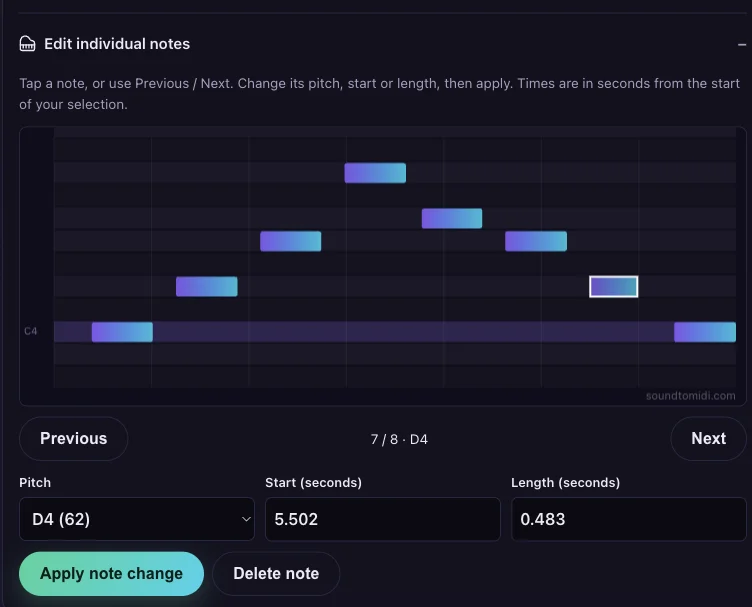
| Raw MIDI | 9 notes; all 8 source pitches matched within 150 ms of their starts | One extra D5 around 5.5 seconds |
| Melody / Clean | 8 notes | Kept the high D5 instead of the intended D4 |
| One manual edit | Changed that D5 to D4 | Still checked timing and note endings by ear |
Automatic cleanup reduced the note count but retained the wrong octave. A smaller note count alone does not mean a better transcription.
To repeat the edit, convert the example, dismiss the purchase offer, then open Edit individual notes. Use Next to select the D5 near 5.5 seconds, set Pitch to D4 and choose Apply note change. Compare Original audio, Raw MIDI and Cleaned MIDI. Undo lets you hear the difference. Your free Raw MIDI stays unchanged.
Download this run’s Raw MIDI · Download the edited example pack · Inspect settings and observed notes
The free example pack contains the actual edited output. Different devices or future versions may produce different notes; inspect your own run instead of forcing it to match this table. The other worked examples include chords and a percussion input that produced no notes.
Choose the files you actually need
Conversion, listening, note editing and Raw MIDI download are free. Download Raw MIDI to continue editing in your DAW without buying anything. Preview the current Cleaned MIDI and score before deciding whether the optional Music Export Pack, currently USD 2.99 once, is useful. The converter reads the live price and shows it beside the purchase button.
The pack contains eight files: edited MIDI, score PDF, editable MusicXML, a piano-key note-map PNG, original-speed and half-speed synthesized practice WAVs, a note list CSV and a guide. You can download a ZIP or individual files. WAV exports support up to ten minutes of notes.
The score is an automatic piano-score draft. It uses a fixed tempo, a sixteenth-note notation grid and suggested hand assignment. It may need pitch, rhythm and bar corrections; it does not add accompaniment, fingering or lyrics. Use MusicXML to continue revising the notation, PDF to inspect or print it, and the slower WAV to rehearse the corrected phrase.
Payment and keeping your result
The converter prepares the files before opening Stripe Checkout. After payment, return to the same browser so it can verify payment and unlock that local result. Further edits and exports of the same result are included while its local task remains available, for up to seven days. A new conversion requires a new pack. There is no subscription.
Download and keep a copy promptly. Cleared site data, a discarded private window, another browser or device, or a lost payment return can prevent recovery. There is no cloud backup. If payment completed but you cannot get your files, do not pay again. Contact contact@soundtomidi.com with your receipt, approximate payment time and amount; do not send full card numbers or audio files. After verifying the purchase, we will offer reasonable help, which may include a refund where appropriate or required by law. See the terms.
Open the converter with your own audio, or start with the free example above and listen to one phrase before exporting more.