To trim a MIDI file, choose the passage to keep, handle notes that cross its edges, and export that passage as a new MIDI file. Moving a clip boundary on screen may only change playback inside the project. Reopen the exported file to confirm that the unwanted events are actually gone.
First decide what you mean by “trim.” Removing silence before the first note, extracting bars five through eight, and shortening every note are different operations. This guide covers extracting a time range and moving its beginning to zero.
The sample downloads are free. Use a sequencer for full-file cropping when you need tempo maps, sustain or multiple tracks preserved; SoundToMIDI’s note editor is not a lossless MIDI-file cropper.
A cut with notes crossing both edges
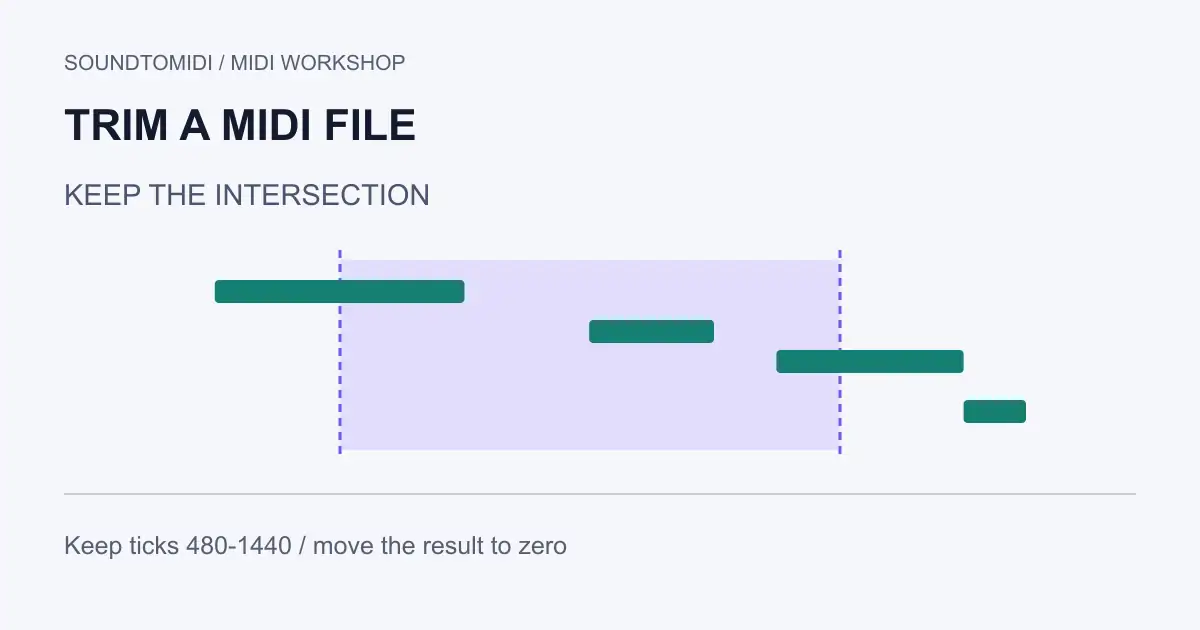
Download the uncropped phrase and cropped result. These are original programmed files at 120 BPM and 480 ticks per quarter note. We keep ticks 480 through 1440, a one-second passage, and shorten notes at the cut boundaries.
| Pitch | Original interval | Portion retained | New interval |
|---|---|---|---|
| 60 | 240–720 | 480–720 | 0–240 |
| 64 | 960–1200 | 960–1200 | 480–720 |
| 67 | 1320–1680 | 1320–1440 | 840–960 |
| 72 | 1680–1800 | None | Removed |
The first note began before the cut, but it was still active at the new beginning. The last retained note ended beyond the cut, so we shortened it. The fourth note lies entirely outside the chosen range and disappears.
This is one explicit crop policy. Another workflow might omit notes that began before the cut, or keep their complete tails. Choose the behavior you need rather than treating every different result as an error.
Preserve the musical start you actually want
Set the project tempo and identify the phrase with a ruler or metronome. A pickup may begin before the first strong beat. Trimming all silence and moving the first note to bar one can accidentally move that pickup onto the downbeat.
For a loop, use a musical end boundary. A bar can contain a rest after its last note. Ending the file at that note’s release may make the loop shorter than a bar, even though no sound was removed. For a one-shot phrase, a tight end may be appropriate instead.
Keep a duplicate before deleting anything. Solo the intended track and play across both boundaries. If there are multiple synchronized tracks, use the same time range for each rather than trimming every track to its own first note; doing that would destroy their alignment.
Crop the clip, then export it
In Ableton Live 12, the Clip View documentation distinguishes cropping to clip or loop markers from Crop Clip to Time Selection. Use the command that matches the range you selected. The resulting MIDI still needs to be exported as a file.
Ableton’s MIDI file guide documents Export MIDI Clip from the File menu or clip context menu. Save a new .mid, then import it into a clean project. These are documented application steps; our automated checks verify the constructed MIDI files, not a native Ableton session.
In another sequencer, look for the equivalent export-selected-range or export-item option. Verify whether a disabled or hidden clip remains in the export. A shorter visible region is not enough evidence that the saved file is shorter.
Treat note boundaries as intervals
For a simple note-only crop from a to b, retain the intersection of each note interval with that range. Discard empty intersections, then subtract a from the retained starts and ends. This produces the result in our table without guessing from pixel positions.
The new first note should start at zero and last 240 ticks. The middle note starts at 480 and lasts 240. The last starts at 840 and lasts 120. Our parser check confirms three notes with those values. It does not demonstrate controller preservation because the fixtures have no controller lane.
If your editor keeps the original note starts while moving the clip, check whether you are reading clip-relative time or project time. They are different coordinates. Reimporting the export into a clean track is a useful way to remove that ambiguity.
Restore the state needed at the new beginning
A real MIDI passage may rely on an earlier program change, sustain value, pitch bend, volume or tempo event. Removing those events can change the sound even when all retained notes are correct. Determine the state at the cut and recreate the required setup at the new start using your sequencer’s export tools.
Also check the end for a pedal left down or a missing release. Do not add blanket resets without listening: they can cut off a tail you intended to keep. The stuck sustain guide explains that diagnosis in more detail.
Finally, compare the first attack, last release, note count and musical length of the reopened file. Keep the source until the receiving application plays the passage as expected. Cropping should produce a reusable phrase, not merely a smaller file.