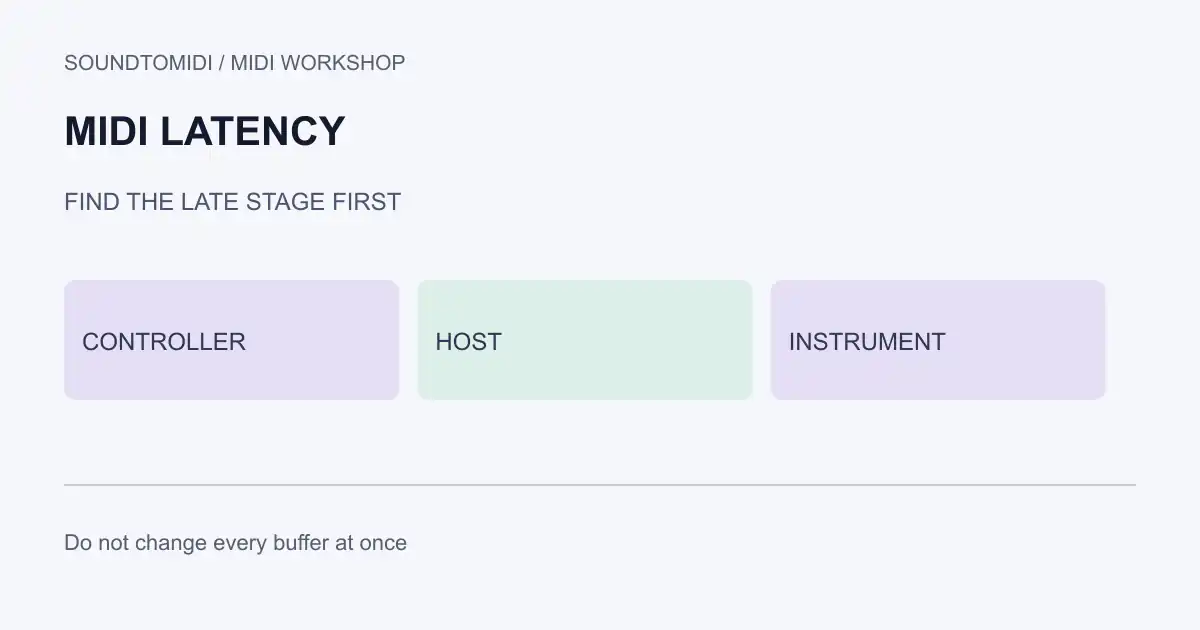
MIDI latency is delay between a physical or on-screen action and the audible or recorded response. The delay can sit in the controller, the USB or MIDI interface, the host’s audio engine, the instrument plug-in, or monitoring hardware. Changing every buffer setting at once hides which stage was late.
This page is a diagnosis order for keyboard and MIDI-to-soft-synth setups. Exact buffer numbers belong in your audio interface and DAW manuals; they change by device and driver.
Separate three clocks of delay
- Controller path: keys or pads to the computer. USB polling, class-compliant drivers and hubs matter here.
- Host audio path: the DAW’s input/output buffer and monitoring mode. This dominates when you hear soft synths through the interface.
- Instrument path: plug-in delay compensation, convolution reverbs and external hardware round-trips.
A recording that looks late on the grid after the fact is not automatically live-monitoring latency. Check whether the track was delayed on input, shifted on record, or played against a late click.
Measurement checklist
Work in a project copy with one instrument and one MIDI track.
- Play a short note while watching a MIDI monitor. If the on-screen note arrives late relative to your finger but the monitor timestamps are coherent, the musical late feel may still be audio monitoring rather than lost MIDI bytes.
- Enable the host’s low-latency monitoring path if documented for your DAW. Ableton, Logic, Cubase, FL Studio and Reaper each describe buffer and monitoring controls in their own manuals; use those labels rather than third-party screenshots.
- Reduce audio buffer size only one step at a time until CPU load or dropouts appear, then step back. Do not treat the lowest possible buffer as a quality goal.
- Bypass high-latency inserts on the monitoring path. Delay compensation can keep mixes aligned while still making live playing feel late if you monitor through those inserts.
- Test the keyboard on another USB port without a hub. Unpowered hubs and shared displays often add intermittency that feels like “MIDI lag.”
- Compare soft-synth monitoring with an external module’s direct audio. If only the soft synth is late, focus on host buffers and the plug-in; if both are late, inspect the controller path first.
Apple’s Logic Pro audio device documentation is one example of host-side buffer and device settings. Your installed version’s wording may differ; follow the in-app manual when it conflicts with an older web page.
What not to confuse with latency
- Tempo or playback rate errors belong in MIDI plays too fast and tempo maps.
- Grid alignment after recording may need quantize, not a smaller buffer.
- Late external gear under MIDI Clock is a sync problem; see MIDI Clock.
After audio-to-MIDI conversion
Transcription tools estimate note start times from audio. They do not measure your keyboard’s USB round-trip. If you converted a late performance recording, fix musical timing in the MIDI editor; do not expect a buffer change to rewrite history.
SoundToMIDI provides audio-to-MIDI conversion for note capture. It is not a real-time tracking plug-in and does not tune your audio interface. Keep live-performance latency work in the DAW and driver where the monitoring path actually runs.