Audacity’s Export MIDI command saves an existing Note Track. It does not turn the waveform of an MP3 or WAV into notes. If you imported a recording and the command is unavailable, repeatedly changing the export format will not solve the missing transcription step.
The distinction matters because an audio track and a Note Track can sit in the same project. One contains recorded sound; the other contains musical events. The Audacity Note Tracks documentation explains that Note Tracks are created by importing MIDI or Allegro files. For a recording, prepare the audio in Audacity, transcribe it with a dedicated converter, and keep the resulting MIDI for your instrument or editor.
Identify which file you actually have
Before changing anything, save the project and keep the original recording. Look at the track display and the file you opened.
| What you have | What it contains | Useful next step |
|---|---|---|
| MP3 or WAV with a waveform | Recorded sound | Select a clear passage for transcription |
| AUP3 project | Audacity editing project | Export the required audio passage first |
| MID file shown as a Note Track | Existing note events | Edit or export those events |
| A file renamed from MP3 to MID | The same audio bytes under a new name | Restore the extension and transcribe properly |
An AUP3 project is not a portable audio or MIDI export. Send the converter an audio file it supports, not the Audacity project that refers to your editing work.
Why “select a Note Track” is the clue
The Export Other manual describes MIDI export as an operation on one selected Note Track. It also explains that the whole Note Track is exported, even when only part of it is selected. A time-shifted Note Track can introduce empty measures at the start of the exported file.
That explains two different problems: a waveform cannot satisfy the Note Track requirement, and an exported MIDI can contain notes yet begin with silence. Neither is fixed by selecting a different MP3 bitrate. Check the manual for your installed Audacity release because menu placement and MIDI support can change between releases.
Prepare a recording worth transcribing
Choose a short phrase where the part you need is easy to hear. A solo melody is a better first test than a chorus containing vocals, chords, drums and effects. Keep a little space before the first attack and after the last note so the cut does not truncate either.
Use Audacity to listen, trim and export that passage as audio. WAV avoids adding another lossy encoding pass to a recording you have already edited. It does not restore detail lost in an earlier MP3. Avoid applying heavy effects just to make the excerpt sound impressive: the question is whether you can identify its notes clearly.
If you are exporting from a multitrack session, confirm which tracks are audible in the export. A quiet backing track that you forgot to mute can change the transcription. Play the exported file once before passing it on; the waveform visible in the project is not proof that the correct selection reached the file.
Create notes and inspect them
Open the audio-to-MIDI converter, select the exported passage and choose a profile matching the source. Transcribe it, compare the original and MIDI previews, then download the free Raw MIDI. This local browser conversion does not require sending the recording to a server. Account saves and optional AI arrangement are separate workflows.
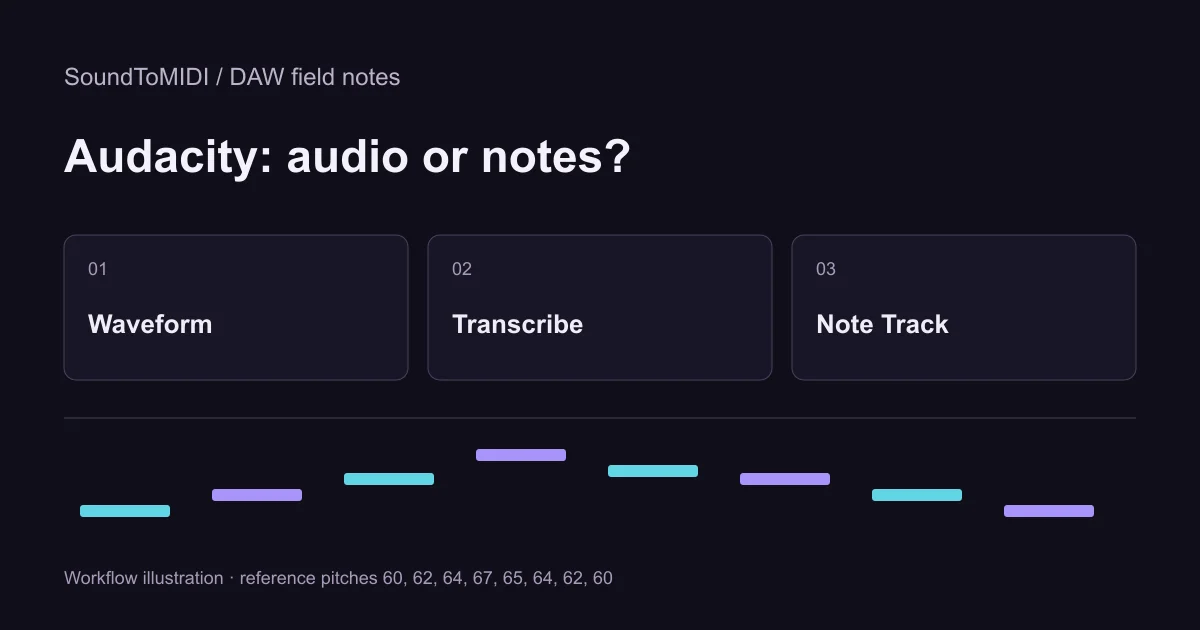
For a reproducible check, use our eight-note MP3. Its intended MIDI pitches are 60, 62, 64, 67, 65, 64, 62 and 60. The archived Raw MIDI contains ten notes, including two extra notes at pitch 74. The manually corrected reference contains the eight intended notes. These are owned synthetic examples, not an accuracy claim about songs or every future conversion.
This comparison gives you a concrete editing task: find the extra high notes, compare their timing with the audio and decide whether they belong. Do not automatically delete every note outside an assumed scale in your own music; the scale assumption may be wrong.
Keep the right result for the next application
Use the MIDI in a DAW with a software instrument to hear the notes. If the editor shows notes but playback is silent, follow the MIDI no-sound checks before converting again. A different piano sound from the original recording is expected; MIDI does not preserve the original microphone, room or instrument timbre.
Audacity can be useful for comparing an imported Note Track with audio, but its documented Note Track editing is limited. For detailed pitch, length and velocity correction, use a MIDI editor. Keep the original audio, untouched Raw MIDI and your corrected version as separate files. That leaves a clear route back if an edit removes a note you later need.