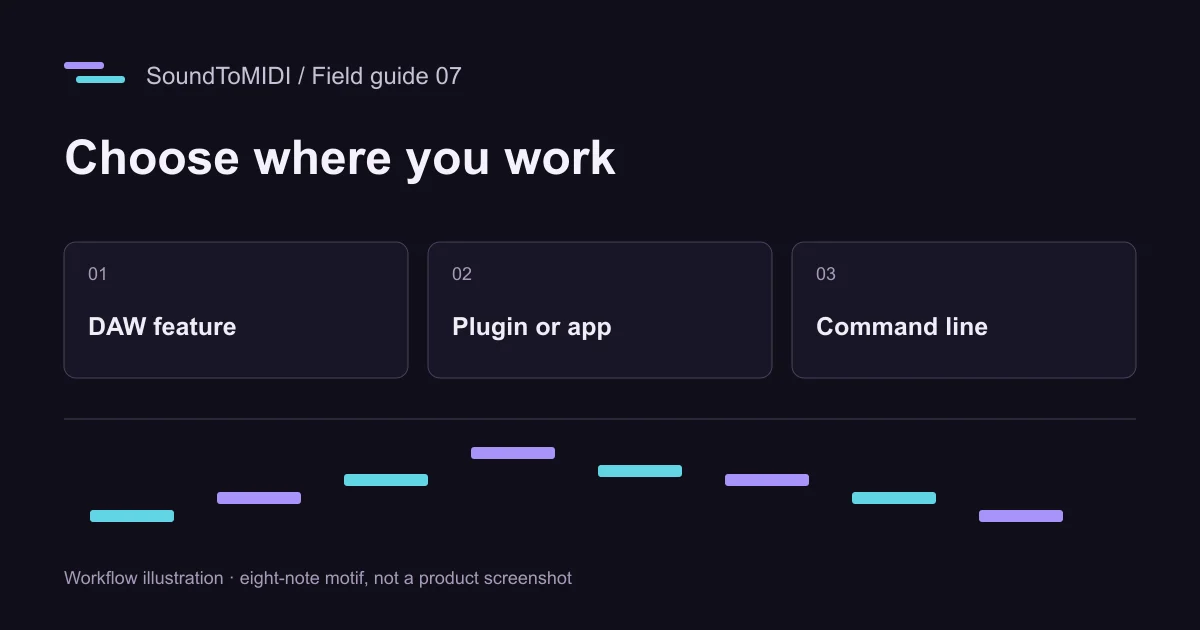
Audio to MIDI software is most useful when it fits the place you already record and edit. If your audio is in a DAW, try an appropriate built-in feature before adding a round trip. If you handle individual files, a standalone or browser converter may be simpler. For repeatable processing of many files, consider a command-line workflow.
Check that the software exports note events you can edit. Software that slices audio and maps samples to MIDI keys solves a different problem from estimating the pitches in a performance.
Choose the integration before the brand
| Where your audio lives | Workflow to investigate | Acceptance check |
|---|---|---|
| In an existing DAW session | The DAW’s transcription feature | Notes arrive in the right project position and can be edited |
| In a DAW without a suitable built-in feature | A compatible transcription plugin | Capture or file input works; MIDI transfers back to the host |
| As occasional files on disk | A standalone app or browser converter | The saved MIDI opens in your intended editor |
| As many repeatable file jobs | A local CLI | Runs are reproducible and failures are recorded per file |
| On a phone | A browser route with a tested download path | The file can actually be saved and opened in the destination app |
An installed application does not automatically support your plugin format, CPU architecture or offline requirements. Treat these as things to verify, not properties implied by the word “software.”
If you already use a DAW
Check the official manual for your installed version and edition. In Ableton Live, the audio-to-MIDI manual describes separate melody, harmony and drum conversion commands. It also explains that slicing creates MIDI triggers for pieces of audio rather than analyzing their musical pitches.
Keep the original audio on a separate track, preserve its start position, and compare the converted clip against it. If your phrase begins with a pickup or silence, account for that when placing the MIDI. Moving the first detected note to the beginning of a bar can accidentally change the phrase’s timing.
For other workflows, our Logic Pro guide and FL Studio guide explain their respective paths. Verify the relevant feature in your own edition before planning a project around it. A product name alone does not establish feature availability.
If you prefer a plugin or standalone app
NeuralNote’s current project documentation describes file input or recording capture, transcription, auditioning and MIDI transfer to a DAW. Its current v2 documentation differs substantially from old Basic Pitch-based tutorials. Use instructions that match the version you install rather than copying settings from an old video.
Before working on a song, complete a short file from input to exported MIDI. Restart the application and reopen that MIDI in the destination program. If your goal is offline work, verify the whole route after any required model downloads; the presence of an installer is not enough.
Check how the tool handles multiple instruments. A single combined note stream may be usable for one melody but inconvenient for a full arrangement. Instrument labels in an interface also need checking against what survives export.
If your work needs repeatability
A CLI is useful when you want to record the same parameters and process named files consistently. Spotify’s Basic Pitch is one option; the GitHub setup guide covers the official project and a small first run.
Keep input files unchanged, use separate output folders, and save the tool version alongside your results. Run one file before a batch. A process completing successfully only confirms that output was produced, not that the notes are musically correct.
For comparisons, use the same source and excerpt across runs. Change one parameter at a time, and retain earlier output so you can hear whether the change helped. Batch processing saves clicking; it does not remove listening and editing.
Check the handoff, not just the preview
Use a plain instrument in the destination program. Verify the first note, phrase length, octave range and any simultaneous notes. Check whether pitch bends or other expressive data behave as expected. If the imported file is silent, inspect the instrument and routing before deciding transcription failed.
Our archived eight-note test file can help you test that handoff. It intentionally preserves two extra octave detections, so successful import should not be confused with perfect transcription.
SoundToMIDI is a low-setup option for this first check: local browser conversion and Raw MIDI download are free. Edited project exports are optional and use credits. For an MP3-specific intake decision, continue with MP3 to MIDI software; for choosing among actual results, use the evaluation scorecard.