In REAPER, ReaTune can send MIDI events when it detects pitch changes. To keep those notes, you must also record the MIDI output. Hearing a synth follow your guitar or voice is not proof that an editable MIDI item has been recorded.
Use this approach for a single pitched line, such as a bass phrase, hummed melody or isolated guitar part. It is not a reliable way to separate every instrument in a finished mix. The Cockos ReaEffects guide documents ReaTune’s pitch-event option; the recording steps below distinguish that detector from the track that stores its output.
Set up a two-track test
Save a copy of the project. Put a short audio phrase on a source track and add ReaTune to its FX chain. In its tuning section, enable Send MIDI events when pitch changes. Start playback and check that the detected pitch responds to the phrase.
Create a second track to receive the source track’s MIDI. Use a send from the source to the receiving track, with audio disabled for that send and MIDI enabled. This keeps the original recording from being mistaken for the generated instrument sound.
On the receiving track, choose Record: output (MIDI), arm it and record while the source phrase plays. The REAPER User Guide describes MIDI output recording as recording events after the FX chain. For this first capture, keep the receiving track’s FX chain empty so another plug-in cannot consume or transform the events before they are stored.
Stop recording, disarm the receiving track and open the new MIDI item. There should be notes you can inspect. Only then add a software instrument to audition the recorded MIDI. This setup is based on the documented controls, not a claim that every REAPER theme or version presents identical menus.
Separate detection, recording and playback
| What you observe | Stage to check | What would confirm progress |
|---|---|---|
| ReaTune does not follow the phrase | Audio reaching the detector | Pitch changes visible during playback |
| ReaTune follows it, but the new item is empty | MIDI send and recording mode | Note events visible in the recorded item |
| Notes exist, but you hear nothing | Instrument and output | The recorded notes play after recording stops |
| Original audio plays, but MIDI is wrong | Musical transcription | Notes match the phrase with the source muted |
Do not diagnose all four situations as “REAPER cannot convert audio.” The first three are different parts of the signal path. The last is a quality problem that may require a clearer input or manual editing.
Test with a phrase whose notes are known
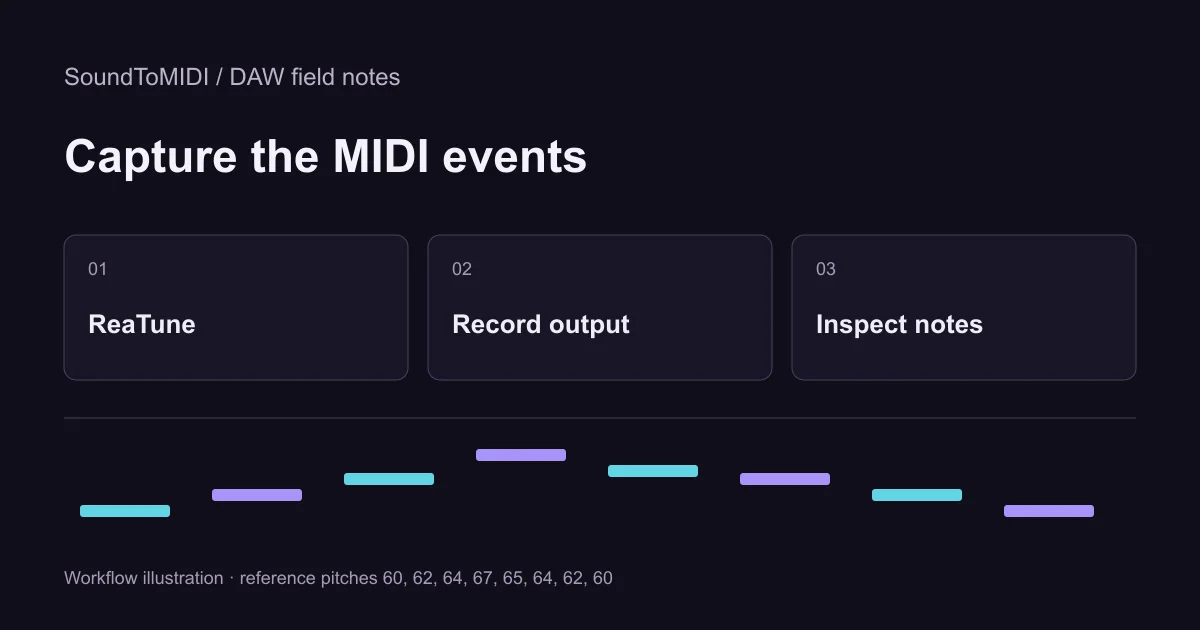
Download our eight-note MP3. Its intended pitch numbers are 60, 62, 64, 67, 65, 64, 62 and 60. Use it as the source for your ReaTune recording, then compare the result with the manually corrected reference MIDI.
These are owned synthetic fixtures, not a recorded musician or a benchmark score for ReaTune. We have not claimed that your output will match them exactly. The advantage is that you know what to look for before trying a difficult recording.
Inspect the first and last notes, the changes between neighboring pitches and any unexpectedly high notes. Compare note numbers rather than octave names if two programs label middle C differently. Save the first capture before making adjustments so you can tell whether a second attempt actually improves it.
Repeated notes need particular attention
A pitch detector is following pitch, not necessarily every musical attack. Two consecutive notes at the same pitch can be difficult to distinguish, while vibrato or an unstable note can produce unwanted changes. Listen for the attacks in the source and compare their positions with the MIDI item.
If a note is split into several fragments, do not immediately quantize all of them. Decide whether they represent one sustained note or repeated articulations. If a note jumps an octave, compare it with the source before transposing the whole item. One wrong detection does not mean the entire phrase belongs an octave lower.
For a guitar phrase, try a clean isolated recording before a distorted full arrangement. If you have the original session, export the relevant part alone. No routing configuration can guarantee that a pitch detector will select the instrument you intended from a dense mix.
Keep the recorded MIDI portable
When the notes are useful, use REAPER’s MIDI export controls for the selected MIDI material and save a separate .mid file. Re-import that file into a clean project with an instrument. This checks the handoff rather than relying on the sound of a live detector that is still running in the original session.
If ReaTune does not suit the source, use the browser converter and import its free Raw MIDI into REAPER for correction. Compare the same excerpt through both routes; keep the source, raw result and edited result separate. If either MIDI is silent after import, use the playback diagnostic before running more conversions.