If you need an MP3 to MIDI converter download, choose an official standalone application or a plugin supported by your DAW. If you only want to convert one recording, the browser MP3 converter needs no application installer and provides a free Raw MIDI download. Downloading the converter and downloading its MIDI result are different things.
For an installed graphical route, NeuralNote’s official download page links its current packages. For a Python workflow, use the Basic Pitch setup guide. This article is an installation and acceptance checklist, not a promise that every package has been tested on your hardware.
Choose standalone or plugin deliberately
A standalone app opens independently. A plugin needs a compatible host and plugin format. Downloading a VST3 or AU package will not necessarily give you an application you can launch by double-clicking it.
If your main job is converting saved MP3 files, a standalone route can be easier to verify. If you want to capture audio already playing in a DAW, a plugin may avoid exporting intermediate files. Check that the package you choose supports the operating system, processor and host you actually use.
| Check before downloading | Why it matters |
|---|---|
| Operating system and minimum version | A package can be valid but incompatible with your machine |
| Apple Silicon, Intel or Windows architecture | The installer must match the supported hardware |
| Standalone, VST3 or AU | These are different launch and integration routes |
| Model download requirements | The installer may not contain the transcription model |
| MIDI saving or export access | A working preview is not enough |
| Source and model licenses | Relevant if you redistribute or build on the software |
What the current NeuralNote instructions say
The official repository’s installation section currently lists separate Apple Silicon and Intel macOS installers, plus a Windows x64 installer. It describes a standalone application and supported plugin formats. Its Linux instructions currently direct users to a source build rather than a prebuilt release.
The model is downloaded separately within the application. Check available disk space and allow that initial setup to finish before assuming the app is ready for offline use. Release packaging and compatibility can change, so use the current official instructions instead of a copied filename from an old article.
This guide does not recommend disabling your operating system’s security protections to force an unknown download to run. Verify the origin and the project’s own instructions if an installation warning appears.
Finish a first-run acceptance check
Open the application or instantiate the plugin in a compatible DAW. Load a short MP3 you own. If there is a choice of instruments or model, begin with the documented default or a suitable source-specific choice, and record it.
Run transcription, audition the result, and save or transfer the MIDI. Then open that MIDI in the program where you intend to finish the music. Load an instrument and check that the notes are editable. Close and reopen the destination project to confirm that the result was actually saved.
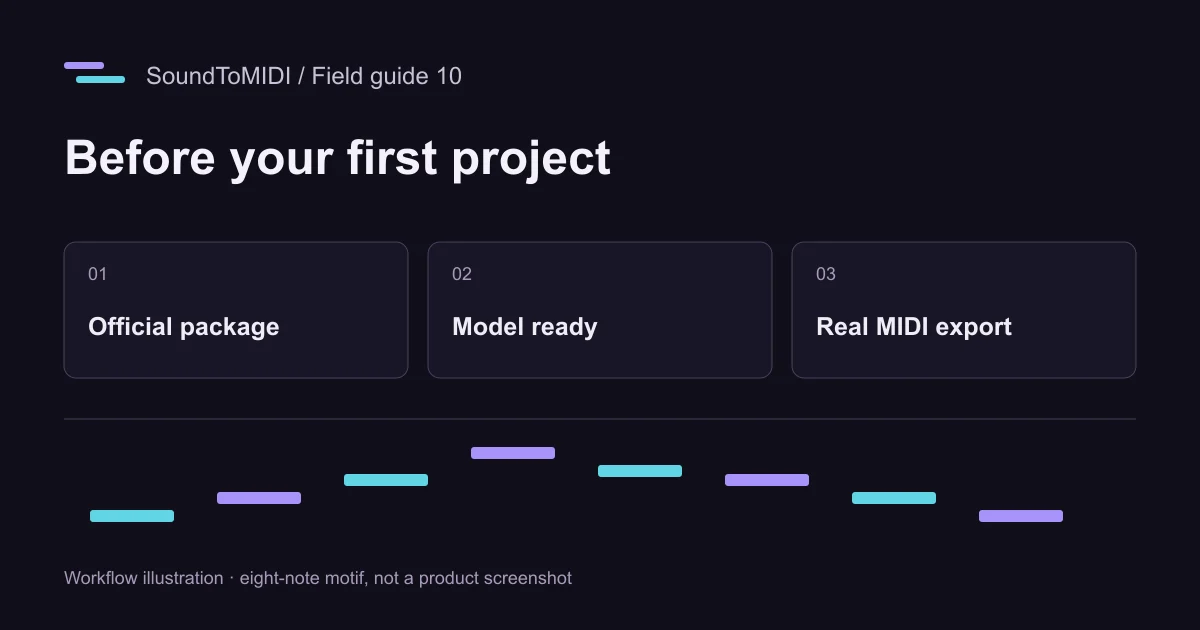
For this first check, you can use our small synthesized MP3. Its known eight-note sequence makes it easier to spot an empty output or a wrong octave. Our archived browser transcription is available as a separate MIDI file; it is not a benchmark result for the software you just installed.
Test offline behavior before relying on it
If offline work is essential, complete installation and any model downloads while connected. Then test the application with the connection unavailable, using a new local file rather than only reopening a cached result. Verify input, transcription, playback and export, not just whether the window opens.
Record which features still need the network. Model updates, account checks and optional cloud services may behave differently from local inference. A statement that transcription runs locally does not by itself describe every feature’s network requirements.
SoundToMIDI also processes conversion locally, but its webpage and model assets must load. We do not present a browser tab as a guaranteed offline installer substitute.
When the downloaded tool does not appear
If a plugin is missing from your DAW, first check the installed format and the host’s official plugin-scanning instructions. If a standalone executable is missing, verify whether the selected package included one. If the app opens but cannot transcribe, check whether its required model finished downloading and whether your machine meets its stated requirements.
Do not keep downloading unrelated “MIDI converters” as a workaround. A utility that renders MIDI into MP3 is doing the reverse job. A utility that converts MP3 into WAV changes audio encoding but does not produce notes.
Once the installation works, judge the transcription using the same-source comparison plan. Keep the original recording and Raw MIDI so you can change tools later without losing your reference.